How to reduce bot verification friction
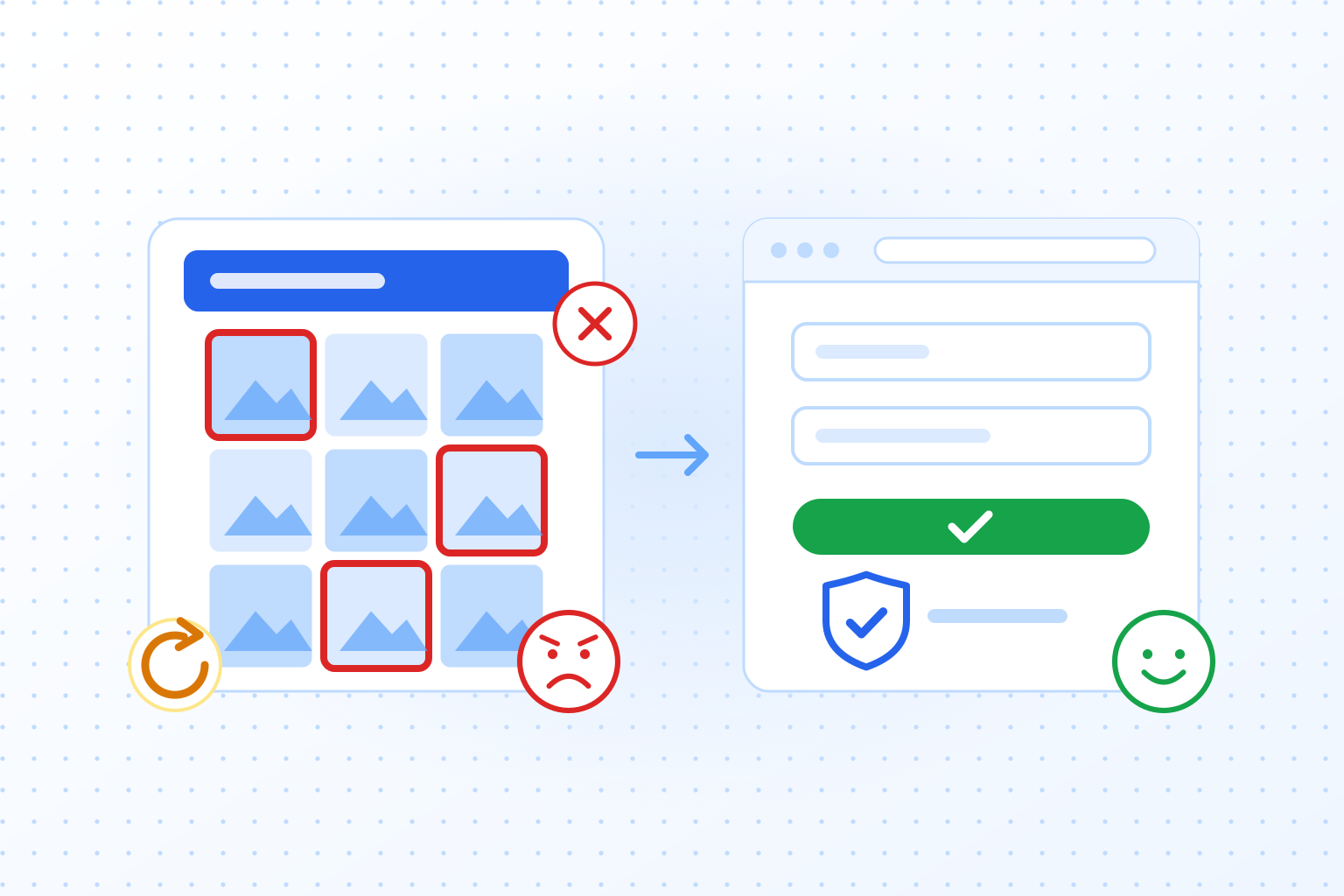
Bot verification causes friction when it asks the visitor to do something: tick a box, pick tiles, type letters, try again. To reduce it, move the check into the background, start it while the visitor is still filling in the form, and keep extra steps for the few requests that look automated. Whatever stays visible should look like part of your site.
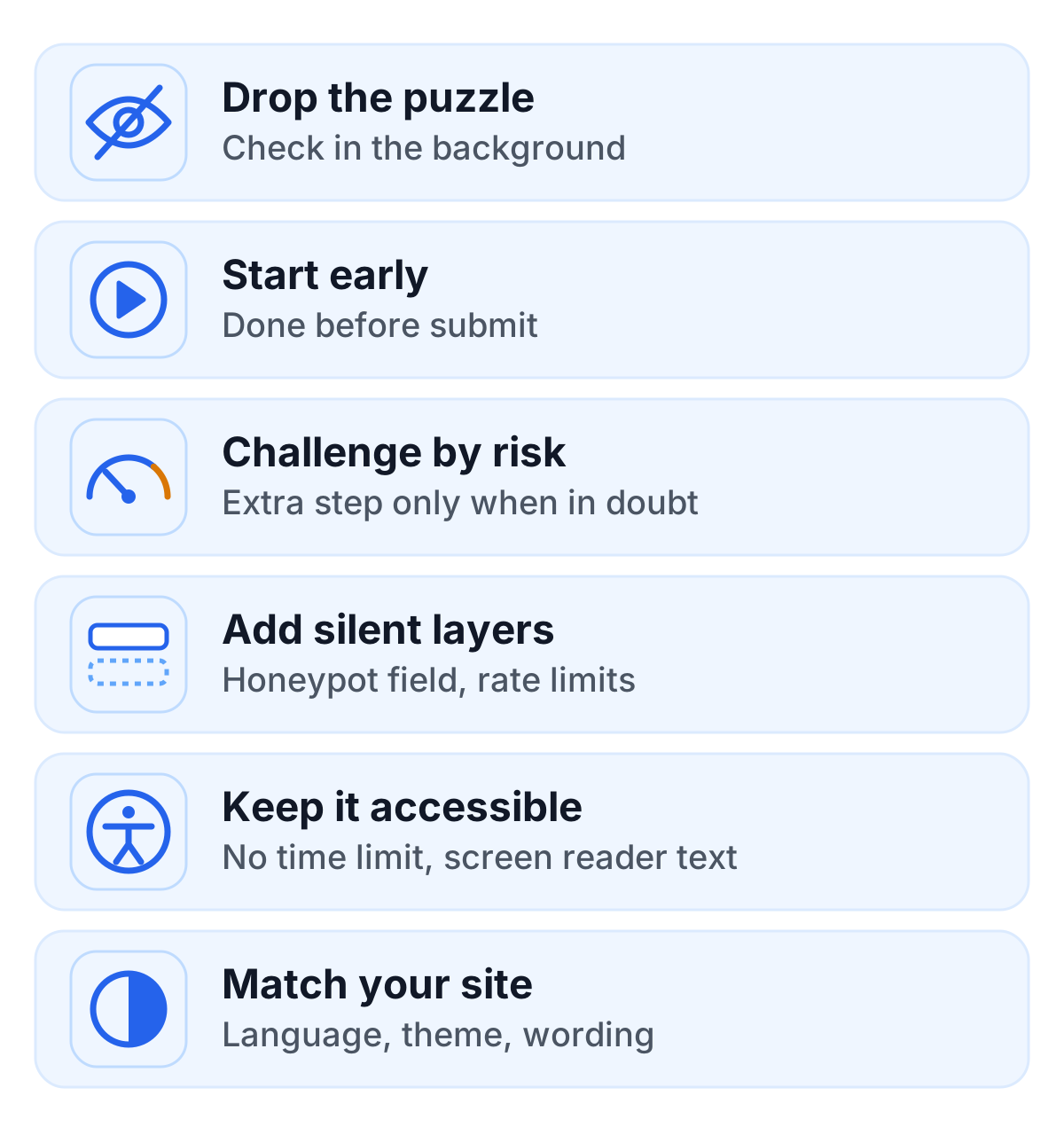
In practice that comes down to six changes:
- Drop the puzzle. An invisible CAPTCHA checks the browser with proof-of-work and behavioral signals instead of handing the visitor a task.
- Start early. Begin the check when the visitor first interacts with the form. By the time they press submit it is done, and nobody waits on a spinner.
- Challenge by risk. A bot score lets your server accept clear cases, block obvious bots and ask for an extra step, such as an email confirmation, only in between.
- Add silent layers. A honeypot CAPTCHA field and rate limits catch simple bots, and visitors never see them.
- Keep it accessible. Set no time limit, give the widget screen reader texts and show a status that says what is happening. Any visible fallback has to work with a keyboard and a screen reader.
- Match your site. Show the widget in the visitor’s language and in your theme, and give it the same tone as the rest of the form.
The first two remove most of the friction on their own. The rest decide how the check behaves at the edges: suspicious traffic, assistive technology, visitors who read your site in another language.
What a puzzle CAPTCHA costs your visitors
CAPTCHAs keep bots out of signup, login, contact and checkout forms, and they stop a lot of automated traffic. The classic kind does it by putting a task between the visitor and the submit button.
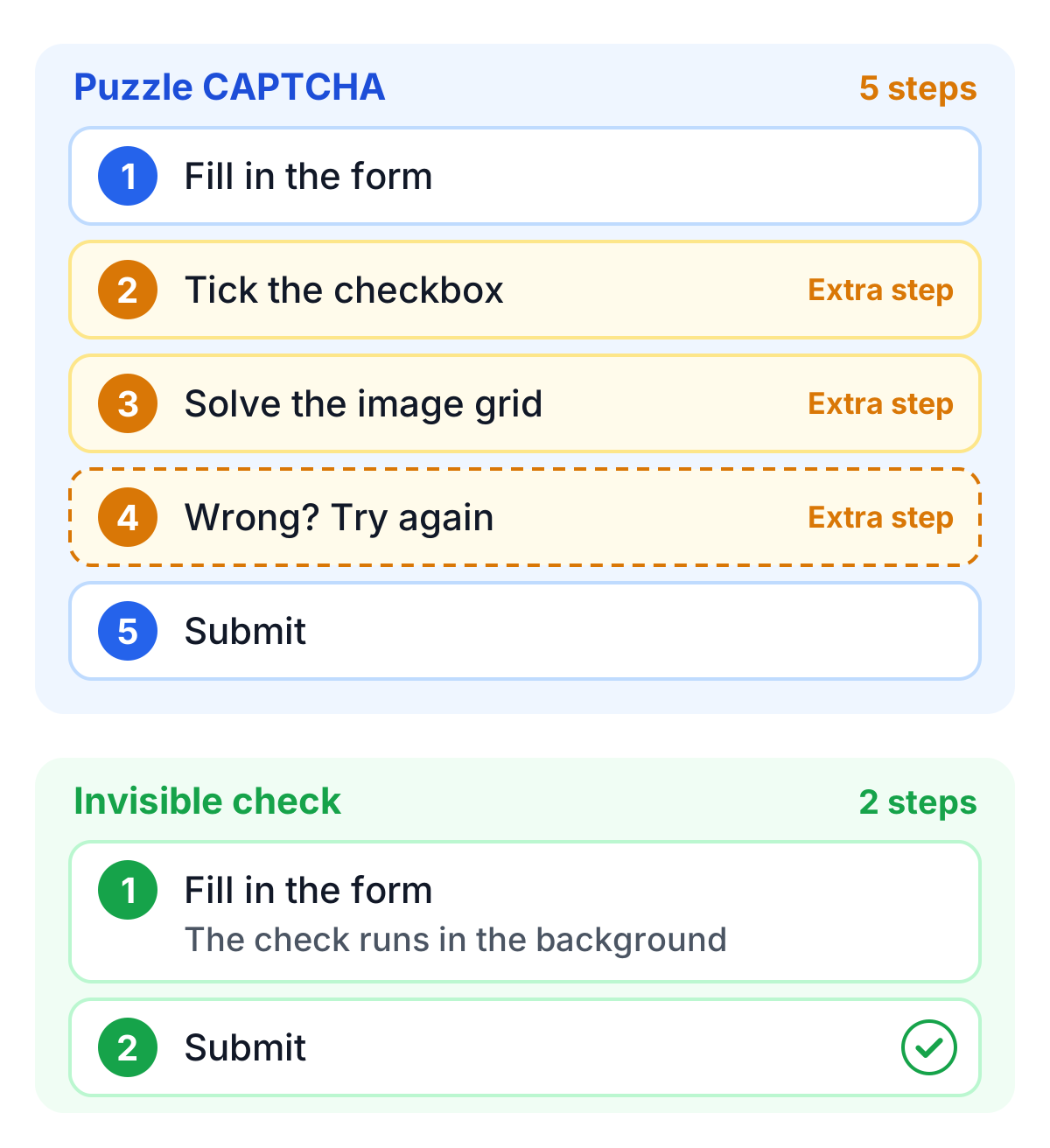
Count the steps. With a checkbox CAPTCHA that falls back to an image grid, the visitor fills in the form, ticks the box, solves the grid, sometimes gets it wrong and starts again, and only then submits. With an invisible check they fill in the form and submit: two steps instead of five. Each extra step is a moment where someone gives up, and on a phone the tiles are small enough to make mistakes likely.
People also get puzzles wrong more often than you would think. In a 2010 Stanford study, three people shown the same text CAPTCHA agreed on the answer only 71% of the time. Machine learning, meanwhile, reads distorted text well, and CAPTCHA farms pay people to solve anything a person can. The visible task ends up slowing down the visitors you want more than the bots you don’t.
What makes a good CAPTCHA UX
A user-friendly CAPTCHA gets five things right:
- Little or no interaction: the check should not feel like work. At best, the visitor does nothing at all.
- Accessibility: an accessible CAPTCHA works for people who use screen readers, keyboards or other assistive technology, and for people with low vision or cognitive disabilities. That rules out tasks that depend on sight or hearing, and time limits.
- Speed: the check must not slow down the page or keep the visitor waiting at the submit button.
- Fit: the widget should match your site’s look, language and wording, and work on every screen size.
- Security: none of this helps if bots get through. The check still has to make automated requests expensive and spot the ones that look automated.
Puzzle CAPTCHAs force a trade between the first point and the last. Background checks don’t. That is why TrustCaptcha works that way.
How TrustCaptcha keeps verification out of the way
TrustCaptcha checks visitors in the background. The widget solves a proof-of-work task on its own, and from the Solo plan on TrustCaptcha also computes a bot score for every request. Your server validates the result before it accepts the form. The visitor sees a small widget that reports its progress, or nothing at all.
Ease of use
No puzzles. There are no image grids to scan and no distorted text to read. The proof-of-work runs in the visitor’s browser without any input.
Autostart. The widget starts on its own as soon as the visitor interacts with the form and is usually finished before they press submit. Verification no longer sits at the end of the form, where it hurts most.
One click if you prefer it. If you would rather have visitors start the check themselves, turn autostart off. The widget then waits for a single click and does the rest without a task.
Customization
Theme and language. The widget comes in a light and a dark theme or follows the visitor’s system setting. It speaks 37+ languages and picks up your page’s language automatically.
Your own texts. You can rewrite every label, status message and screen reader text, so the widget talks like the rest of your site.
Your own design. From the Team plan, you can set text, background and border colors, border width and corner radius.
Branding. The paid Captcha Branding add-on removes TrustCaptcha’s branding or hides the widget completely. You can also show a link of your choice inside the widget, for example to your privacy policy.
Proof-of-work that follows the risk
The proof-of-work is the part that takes time, so its difficulty decides how fast verification feels. TrustCaptcha does not give every visitor the same task: the more suspicious a request, the harder its proof-of-work. A regular visitor finishes almost at once, while a bot that sends thousands of requests pays for each of them.
From the Solo plan, you can tune this yourself. Make the overall difficulty lighter or harder, or add rules for specific traffic by country, language, time zone, browser, operating system, device type or IP range, from 20% to 500% of the default.
Accessibility
Screen reader support. Every element of the widget comes with ARIA labels and screen reader texts, and you can change all of them. Visitors using assistive technology need no audio challenge and no special mode.
A clear status. The widget shows whether the check has not started yet, is running or is done, so nobody has to guess whether they need to do something.
No time limit. Visitors can take as long as they need to fill in the form.
No puzzle or audio barrier. Visual puzzles shut out people with low vision, and audio challenges shut out people who cannot hear them well. With nothing to solve, TrustCaptcha avoids both. Since 28 June 2025 the European Accessibility Act applies to many consumer services in the EU, so a CAPTCHA that blocks disabled visitors is now a legal question as well.
Do you need a CAPTCHA at all?
Not always. A small contact form that gets a handful of spam messages a week may be fine with a honeypot field and a rate limit. Once bots go after logins, signups or checkout, those layers are not enough on their own, because a bot that renders the page in a real browser sees through a honeypot. Our overview of CAPTCHA alternatives compares the methods and what each one misses.
CAPTCHA UX in short
Good CAPTCHA UX means real visitors barely notice the check. Run it in the background, start it early, keep extra steps for suspicious requests and make sure everyone can pass it. TrustCaptcha works this way, sets no cookies and processes data in EU data centers. Every plan starts with a 14-day free trial, and non-commercial websites can use TrustCaptcha for free. Start your free trial.