

'%3e%3crect%20width='32'%20height='24'%20fill='white'/%3e%3cpath%20fill-rule='evenodd'%20clip-rule='evenodd'%20d='M0%200V24H32V0H0Z'%20fill='%232E42A5'/%3e%3cmask%20id='mask0_270_67386'%20style='mask-type:luminance'%20maskUnits='userSpaceOnUse'%20x='0'%20y='0'%20width='32'%20height='24'%3e%3cpath%20fill-rule='evenodd'%20clip-rule='evenodd'%20d='M0%200V24H32V0H0Z'%20fill='white'/%3e%3c/mask%3e%3cg%20mask='url(%23mask0_270_67386)'%3e%3cpath%20d='M-3.56323%2022.2854L3.47846%2025.2635L32.1597%203.23787L35.874%20-1.18761L28.344%20-2.18297L16.6456%207.3085L7.22956%2013.7035L-3.56323%2022.2854Z'%20fill='white'/%3e%3cpath%20d='M-2.59924%2024.3719L0.988173%2026.1001L34.5402%20-1.59881H29.5031L-2.59924%2024.3719Z'%20fill='%23F50100'/%3e%3cpath%20d='M35.5631%2022.2854L28.5214%2025.2635L-0.159817%203.23787L-3.87415%20-1.18761L3.65593%20-2.18297L15.3543%207.3085L24.7703%2013.7035L35.5631%2022.2854Z'%20fill='white'/%3e%3cpath%20d='M35.3229%2023.7829L31.7355%2025.5111L17.4487%2013.6518L13.2129%2012.3267L-4.23151%20-1.17246H0.805637L18.2403%2012.0063L22.8713%2013.5952L35.3229%2023.7829Z'%20fill='%23F50100'/%3e%3cmask%20id='path-7-inside-1_270_67386'%20fill='white'%3e%3cpath%20fill-rule='evenodd'%20clip-rule='evenodd'%20d='M19.7777%20-2H12.2222V8H-1.97253V16H12.2222V26H19.7777V16H34.0275V8H19.7777V-2Z'/%3e%3c/mask%3e%3cpath%20fill-rule='evenodd'%20clip-rule='evenodd'%20d='M19.7777%20-2H12.2222V8H-1.97253V16H12.2222V26H19.7777V16H34.0275V8H19.7777V-2Z'%20fill='%23F50100'/%3e%3cpath%20d='M12.2222%20-2V-4H10.2222V-2H12.2222ZM19.7777%20-2H21.7777V-4H19.7777V-2ZM12.2222%208V10H14.2222V8H12.2222ZM-1.97253%208V6H-3.97253V8H-1.97253ZM-1.97253%2016H-3.97253V18H-1.97253V16ZM12.2222%2016H14.2222V14H12.2222V16ZM12.2222%2026H10.2222V28H12.2222V26ZM19.7777%2026V28H21.7777V26H19.7777ZM19.7777%2016V14H17.7777V16H19.7777ZM34.0275%2016V18H36.0275V16H34.0275ZM34.0275%208H36.0275V6H34.0275V8ZM19.7777%208H17.7777V10H19.7777V8ZM12.2222%200H19.7777V-4H12.2222V0ZM14.2222%208V-2H10.2222V8H14.2222ZM-1.97253%2010H12.2222V6H-1.97253V10ZM0.0274658%2016V8H-3.97253V16H0.0274658ZM12.2222%2014H-1.97253V18H12.2222V14ZM14.2222%2026V16H10.2222V26H14.2222ZM19.7777%2024H12.2222V28H19.7777V24ZM17.7777%2016V26H21.7777V16H17.7777ZM34.0275%2014H19.7777V18H34.0275V14ZM32.0275%208V16H36.0275V8H32.0275ZM19.7777%2010H34.0275V6H19.7777V10ZM17.7777%20-2V8H21.7777V-2H17.7777Z'%20fill='white'%20mask='url(%23path-7-inside-1_270_67386)'/%3e%3c/g%3e%3c/g%3e%3cdefs%3e%3cclipPath%20id='clip0_270_67386'%3e%3crect%20width='32'%20height='24'%20fill='white'/%3e%3c/clipPath%3e%3c/defs%3e%3c/svg%3e)
'%3e%3crect%20width='32'%20height='24'%20fill='white'/%3e%3cpath%20fill-rule='evenodd'%20clip-rule='evenodd'%20d='M0%2016H32V24H0V16Z'%20fill='%23FFD018'/%3e%3cpath%20fill-rule='evenodd'%20clip-rule='evenodd'%20d='M0%208H32V16H0V8Z'%20fill='%23E31D1C'/%3e%3cpath%20fill-rule='evenodd'%20clip-rule='evenodd'%20d='M0%200H32V8H0V0Z'%20fill='%23272727'/%3e%3c/g%3e%3cdefs%3e%3cclipPath%20id='clip0_270_67353'%3e%3crect%20width='32'%20height='24'%20fill='white'/%3e%3c/clipPath%3e%3c/defs%3e%3c/svg%3e)
'%3e%3crect%20width='32'%20height='24'%20fill='white'/%3e%3cpath%20fill-rule='evenodd'%20clip-rule='evenodd'%20d='M22%200H32V24H22V0Z'%20fill='%23F50100'/%3e%3cpath%20fill-rule='evenodd'%20clip-rule='evenodd'%20d='M0%200H12V24H0V0Z'%20fill='%232E42A5'/%3e%3cpath%20fill-rule='evenodd'%20clip-rule='evenodd'%20d='M10%200H22V24H10V0Z'%20fill='%23F7FCFF'/%3e%3c/g%3e%3cdefs%3e%3cclipPath%20id='clip0_270_67361'%3e%3crect%20width='32'%20height='24'%20fill='white'/%3e%3c/clipPath%3e%3c/defs%3e%3c/svg%3e)
;}.cls-3{fill:%2333c6f4;}.cls-4{fill:%231b447e;}.cls-5{fill:%23fff;}.cls-6{stroke:%23221e1f;stroke-miterlimit:10;stroke-width:7.16px;}%3c/style%3e%3cclipPath%20id='clip-path'%20transform='translate(1.72)'%3e%3ccircle%20class='cls-1'%20cx='119.73'%20cy='119.73'%20r='116.15'/%3e%3c/clipPath%3e%3c/defs%3e%3cg%20id='Layer_2'%20data-name='Layer%202'%3e%3cg%20id='Layer_1'%20data-name='Layer%201'%3e%3cg%20class='cls-2'%3e%3ccircle%20class='cls-3'%20cx='121.45'%20cy='119.73'%20r='116.15'/%3e%3cpath%20class='cls-4'%20d='M239.32,167.79c-53.41-24-108.37-91.46-113-94.55s-10.84.77-10.84.77c-3.87-6.19-10.06.77-10.06.77C76.77,123.55.14,170.11.14,170.11S36.94,237.79,122,237.79C208.48,237.79,239.32,167.79,239.32,167.79Z'%20transform='translate(1.72)'/%3e%3cpath%20class='cls-5'%20d='M67.48,116.58s15.48-7,12.38,4.65-15.48,28.64-11.61,29.41S83,140.58,86.06,142.12s5.42.78,3.87,6.2-3.1,9.29,0,9.29,5.42-7,9.29-13.94,10.06-3.87,12.38-1.55,9.29,15.49,14.71,13.94,8.51-8.52,6.19-24,1.55-20.12,1.55-20.12,4.64-2.32,13.16,8.51,24,27.09,26.31,26.32-10.83-17.8-7.74-19.35,15.48,2.32,21.68,7.74c0,0,2.12,8.87,2.12.36L126.31,73.24,115.47,74l-10.06.77S80.64,111.94,67.48,116.58Z'%20transform='translate(1.72)'/%3e%3cpath%20class='cls-6'%20d='M239.32,170.11c-53.41-24-108.37-93.78-113-96.87s-10.84.77-10.84.77c-3.87-6.19-10.06.77-10.06.77C76.77,123.55.14,170.11.14,170.11'%20transform='translate(1.72)'/%3e%3c/g%3e%3ccircle%20class='cls-6'%20cx='121.45'%20cy='119.73'%20r='116.15'/%3e%3c/g%3e%3c/g%3e%3c/svg%3e)
Contact Form 7 CAPTCHA
Contact Form 7 emails you every submission, so one bot that finds your form can fill your inbox. The TrustCaptcha WordPress plugin adds a CAPTCHA to your Contact Form 7 forms and checks every submission on your server before the email goes out. Your visitors solve no puzzle.
Quickstart
How the integration works
1. Create a CAPTCHA
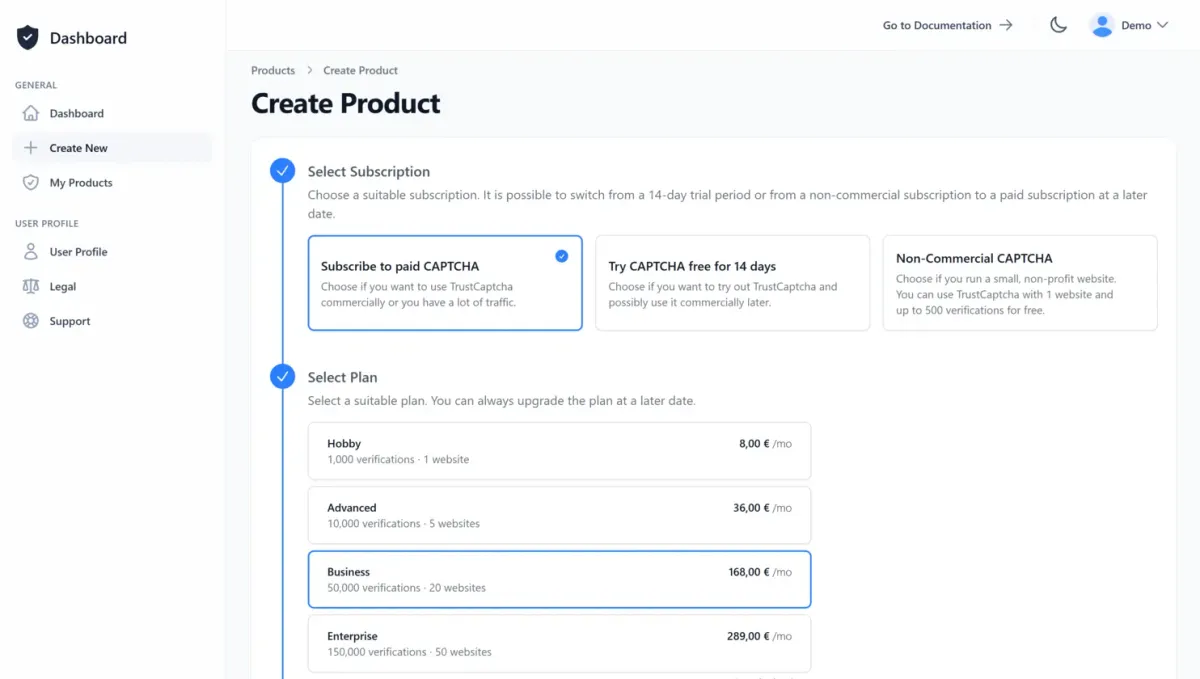
Create a user account or log in with an existing one. Then create a new CAPTCHA or pick an existing one. If you want to try TrustCaptcha first, every plan comes with a 14-day free trial.
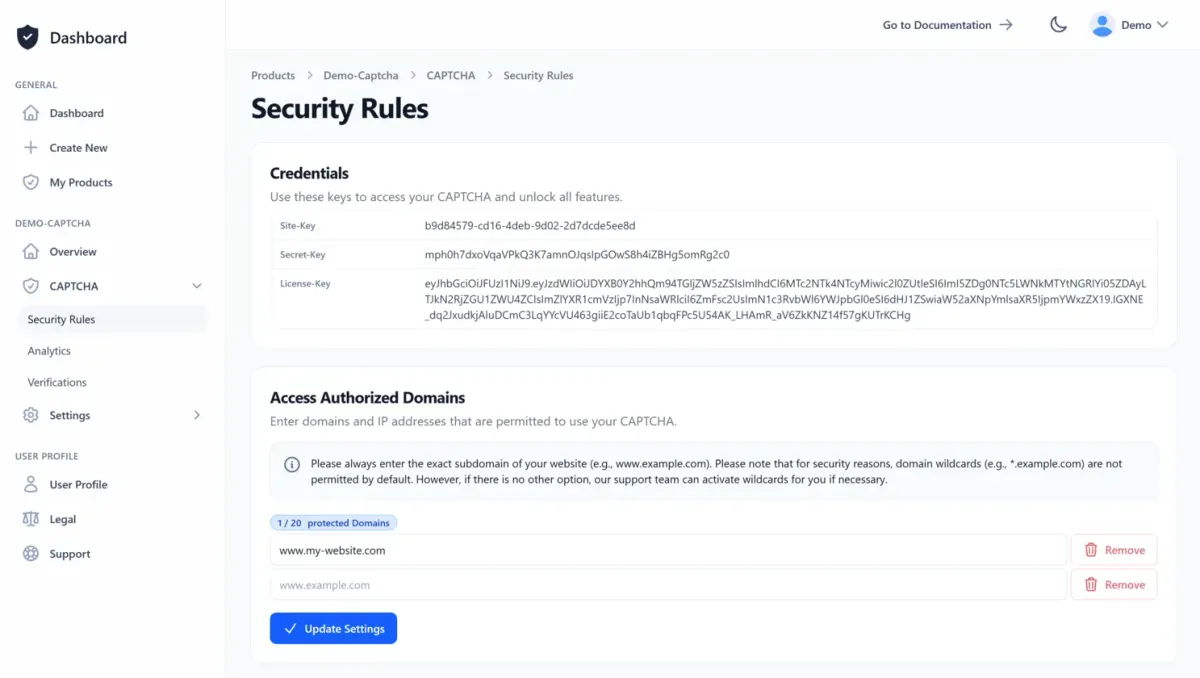
The CAPTCHA overview page shows your site key and license key, and you create your API key there. Add your website’s domain to the authorized domains in the CAPTCHA security rules. If the domain is missing, TrustCaptcha will not show up in your forms.
2. Integrate the CAPTCHA Plugin
In your WordPress admin, go to Plugins → Add New Plugin, search for TrustCaptcha and install it from the WordPress plugin directory (recommended), or download the plugin and upload it manually. Then activate it. Contact Form 7 has to be installed and active as well, otherwise TrustCaptcha does not offer it in its settings.
Every setting is explained in detail in the CAPTCHA integration guide for WordPress in our documentation.
Read the documentation
3. Configure the TrustCaptcha Plugin
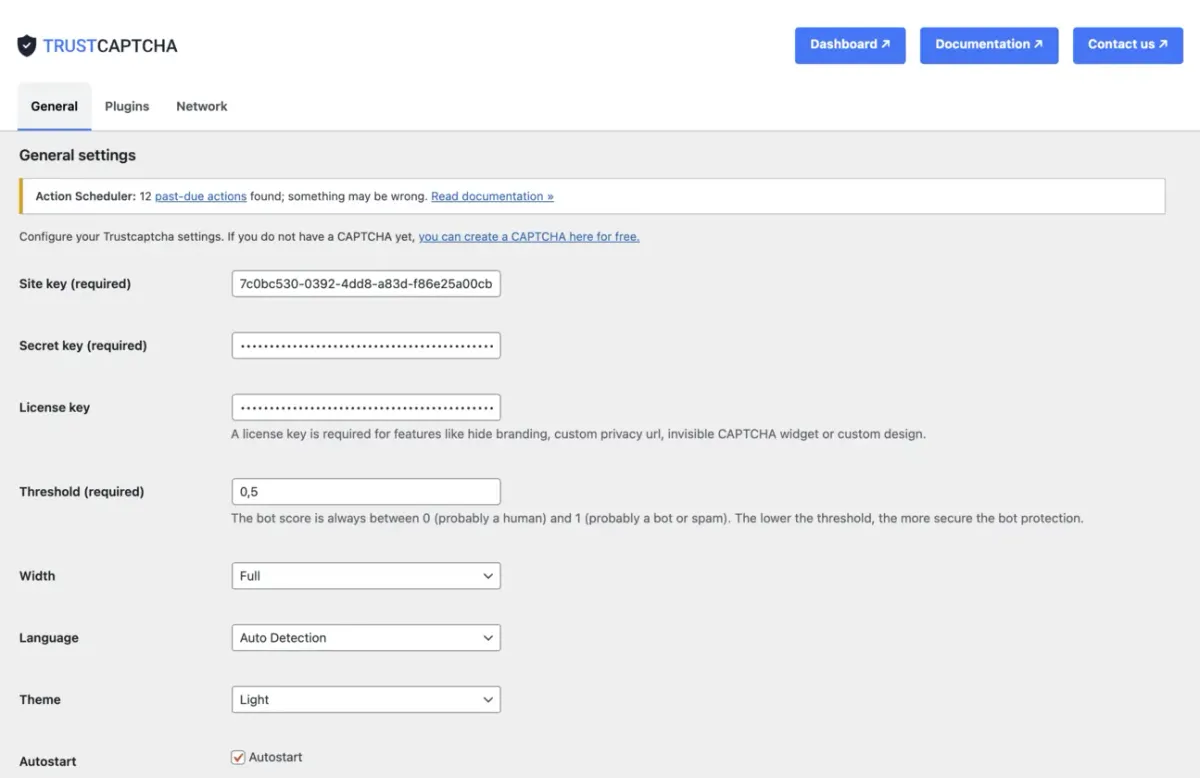
Open Settings → TrustCaptcha. On the General tab, enter your site key and your API key (older versions of the plugin call it the secret key). You only need the license key for extras such as white label or a custom design.
Leave the threshold at the recommended 0.5 to start. It is the cut-off for the bot score (included from the Solo plan), which runs from 0 (probably a human) to 1 (probably a bot): a lower threshold blocks more, a higher one blocks less. The Test connection button checks that your server can reach the TrustCaptcha API.
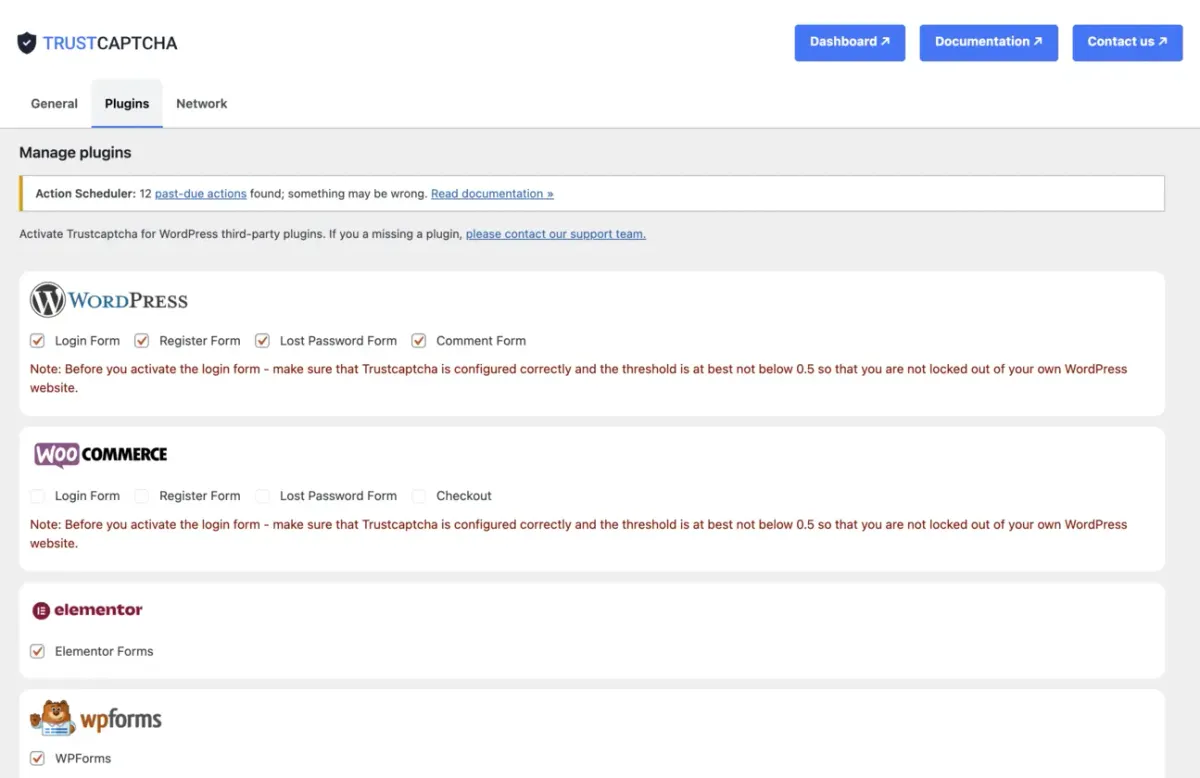
Switch to the Plugins tab, tick the box under Contact Form 7 and save. You don’t have to change your forms: TrustCaptcha places itself above the submit button of every Contact Form 7 form on your site.
4. Test your integration
Open a page with a Contact Form 7 form, fill it in and send it. The CAPTCHA finishes on its own, and the message should arrive as usual. If a submission fails the check, Contact Form 7 treats it as spam: it sends no email and shows the visitor an error message.

What Contact Form 7 spam looks like
A form that turns every submission into an email is an easy target. Once a bot has found yours, the messages follow a pattern: offers for SEO and backlinks, links to casino, crypto or phishing sites, text in languages none of your customers write in, and names made of random letters. Most of it comes from scripts that post straight to the form, often from changing IP addresses, so blocking one address does little.
There is a second risk. If your form sends a confirmation to the address the visitor entered (Contact Form 7 calls this Mail (2)), a bot can type a stranger’s address and make your site send mail to them. Let that run for a while and your domain’s sender reputation suffers.
Keyword lists and Akismet catch part of this after the fact. A CAPTCHA works earlier: a submission that fails the check never turns into an email.
How TrustCaptcha protects Contact Form 7 forms
Contact Form 7 support is part of our WordPress CAPTCHA plugin, so one setup gives your whole site the same form spam protection.
When a visitor opens a page with your form, the TrustCaptcha widget starts on its own. The browser solves a small proof-of-work task in the background, and the riskier a request looks, the harder that task gets. That makes sending spam in bulk slow and expensive. From the Solo plan, TrustCaptcha also calculates a bot score from technical and behavioral signals: 0 means probably a human, 1 probably a bot.
When the visitor clicks send, the plugin validates the result on your WordPress server, inside Contact Form 7’s own spam check. If the check passes, the message goes out as usual. If the bot score is above your threshold or the token is missing, Contact Form 7 marks the submission as spam, sends no email and shows an error message. The plugin writes the reason to Contact Form 7’s spam log. The widget then resets, so a real person who mistyped an email address can correct it and send again without reloading the page.
Because TrustCaptcha plugs into Contact Form 7’s spam check, other anti-spam filters that use the same check, such as Akismet, keep working. Since version 3.0 the plugin ships the widget script itself, so your pages load no script from an outside CDN.
Replace reCAPTCHA or Really Simple CAPTCHA in Contact Form 7
On Contact Form 7 sites that already have a CAPTCHA, it is usually one of two: Google reCAPTCHA through Contact Form 7’s built-in integration, or Really Simple CAPTCHA, the image CAPTCHA plugin from the author of Contact Form 7. Both can go once TrustCaptcha runs. Set up TrustCaptcha first, send a test message, and only then remove the old CAPTCHA, so your form is never left without protection.
Moving from reCAPTCHA
Contact Form 7 connects to reCAPTCHA v3 under Contact → Integration. reCAPTCHA v3 shows no puzzle either, so for visitors the switch changes little.
If you want a Contact Form 7 CAPTCHA without reCAPTCHA, remove the reCAPTCHA keys under Contact → Integration once TrustCaptcha is live. Contact Form 7 then stops loading Google’s script.
Moving from Really Simple CAPTCHA
Really Simple CAPTCHA draws a few distorted characters on your server, and the visitor types them into a field. It needs no outside service, which is why it is still around. The cost lands on your visitors: they have to read and type before they can contact you, and text images like these are what OCR tools and CAPTCHA solving services have been reading for years.
To switch, open each form in the Contact Form 7 editor, delete the [captchac] and [captchar] tags and save. Once no form uses them any more, deactivate Really Simple CAPTCHA.
FAQs
How do I stop Contact Form 7 spam?
Can TrustCaptcha replace the Contact Form 7 reCAPTCHA integration?
Do I have to add a form tag to my Contact Form 7 forms?
Can I keep a honeypot CAPTCHA next to TrustCaptcha?
TrustCaptcha stops form spam without puzzles or cookies.


Protect your Contact Form 7 application with TrustCaptcha in just a few steps!
- EU-hosted & GDPR-compliant
- No puzzles
- Try free for 14 days