%20--%3e%3csvg%20version='1.1'%20xmlns='http://www.w3.org/2000/svg'%20x='0px'%20y='0px'%20viewBox='0%200%20207.3%2029'%20style='enable-background:new%200%200%20207.3%2029;'%20xml:space='preserve'%3e%3cstyle%20type='text/css'%3e%20.st0{fill:%231E293B;}%20.st1{fill:%232563eb;}%20%3c/style%3e%3cg%20id='Ebene_1'%3e%3cg%20id='Ebene_2_00000023959154727838081460000010218683892316788135_'%3e%3cg%3e%3cg%3e%3cpath%20class='st0'%20d='M24.3,7.4c0-0.8,0-1.5,0-2.2c0-0.6-0.4-1-1-1c-4.4,0-7.6-1.2-10.4-3.9c-0.4-0.3-1-0.3-1.5,0%20C8.7,2.9,5.4,4.1,1.1,4.1c-0.6,0-1,0.5-1,1c0,0.7,0,1.5,0,2.2c-0.2,7.4-0.4,17.3,11.8,21.6l0.3,0.1l0.3-0.1%20C24.6,24.6,24.4,14.7,24.3,7.4z%20M11.4,17.5C11.4,17.5,11.3,17.5,11.4,17.5c-0.3,0.2-0.5,0.3-0.8,0.3l0,0c-0.3,0-0.5-0.2-0.7-0.3%20l-2.7-3c-0.3-0.3-0.3-0.9,0.1-1.1L7.5,13c0.3-0.3,0.9-0.3,1.1,0.1l1.4,1.6c0.3,0.3,0.8,0.3,1.1,0.1l4.4-4.2%20c0.3-0.3,0.9-0.3,1.1,0l0.3,0.3c0.3,0.3,0.3,0.9,0,1.1L11.4,17.5z'/%3e%3c/g%3e%3c/g%3e%3c/g%3e%3c/g%3e%3cg%20id='Ebene_2'%3e%3cg%3e%3cpath%20class='st1'%20d='M46.3,8.6h-5.1v14.1h-2.8V8.6h-5.1V6.2h13V8.6z'/%3e%3cpath%20class='st1'%20d='M54.3,16.2h-3.2v6.3h-2.8V6.2h5.8c1.9,0,3.3,0.4,4.4,1.3S60,9.6,60,11.2c0,1.1-0.3,2-0.8,2.8%20c-0.5,0.7-1.3,1.3-2.2,1.7l3.7,6.8v0.2h-3L54.3,16.2z%20M51.1,13.9H54c1,0,1.7-0.2,2.2-0.7s0.8-1.1,0.8-2s-0.2-1.5-0.8-2%20C55.7,8.7,55,8.5,54,8.5h-3v5.4H51.1z'/%3e%3cpath%20class='st1'%20d='M74.3,6.2v10.9c0,1.7-0.6,3.1-1.7,4.1s-2.6,1.5-4.4,1.5c-1.9,0-3.4-0.5-4.5-1.5c-1.1-1-1.6-2.3-1.6-4.1V6.2%20h2.8v10.9c0,1.1,0.3,1.9,0.8,2.5c0.5,0.6,1.4,0.9,2.5,0.9c2.2,0,3.3-1.1,3.3-3.5V6.2H74.3z'/%3e%3cpath%20class='st1'%20d='M85.7,18.3c0-0.7-0.2-1.3-0.8-1.7c-0.5-0.4-1.4-0.8-2.7-1.2c-1.3-0.4-2.4-0.8-3.1-1.3%20c-1.5-0.9-2.2-2.2-2.2-3.7c0-1.3,0.5-2.4,1.6-3.3s2.5-1.3,4.2-1.3c1.1,0,2.2,0.2,3,0.6c0.8,0.4,1.6,1,2.1,1.8s0.8,1.6,0.8,2.6%20h-2.8c0-0.9-0.3-1.5-0.8-2s-1.3-0.7-2.3-0.7c-0.9,0-1.7,0.2-2.2,0.6s-0.8,1-0.8,1.7c0,0.6,0.3,1.1,0.8,1.5s1.5,0.8,2.7,1.2%20c1.2,0.4,2.3,0.8,3.1,1.3c0.8,0.5,1.3,1,1.7,1.7c0.4,0.6,0.5,1.4,0.5,2.2c0,1.4-0.5,2.5-1.6,3.2c-1,0.8-2.5,1.2-4.2,1.2%20c-1.2,0-2.3-0.2-3.3-0.7c-1-0.4-1.8-1-2.3-1.8s-0.8-1.7-0.8-2.7h2.8c0,0.9,0.3,1.6,0.9,2.2c0.6,0.6,1.5,0.8,2.6,0.8%20c1,0,1.7-0.2,2.2-0.6C85.4,19.5,85.7,19,85.7,18.3z'/%3e%3cpath%20class='st1'%20d='M102.6,8.6h-5.1v14.1h-2.8V8.6h-5.1V6.2h13V8.6z'/%3e%3cpath%20class='st0'%20d='M117,17.2c-0.2,1.7-0.8,3.1-1.9,4.1s-2.6,1.5-4.5,1.5c-1.3,0-2.4-0.3-3.4-0.9c-1-0.6-1.8-1.5-2.3-2.6%20c-0.5-1.1-0.8-2.5-0.8-4v-1.5c0-1.5,0.3-2.9,0.8-4.1s1.3-2.1,2.3-2.7s2.2-0.9,3.5-0.9c1.8,0,3.3,0.5,4.4,1.5s1.7,2.4,1.9,4.1h-2.8%20c-0.1-1.2-0.5-2-1-2.5c-0.6-0.5-1.4-0.8-2.4-0.8c-1.2,0-2.2,0.5-2.8,1.4c-0.7,0.9-1,2.2-1,4v1.5c0,1.8,0.3,3.1,0.9,4.1%20s1.6,1.4,2.8,1.4c1.1,0,1.9-0.2,2.5-0.8c0.6-0.5,0.9-1.3,1.1-2.5L117,17.2L117,17.2z'/%3e%3cpath%20class='st0'%20d='M128.5,18.8h-6.4l-1.3,3.8h-2.9l6.2-16.4h2.6l6.2,16.4h-3L128.5,18.8z%20M122.9,16.5h4.7l-2.4-6.8L122.9,16.5z'%20/%3e%3cpath%20class='st0'%20d='M137.2,16.5v6.1h-2.8V6.2h6.3c1.8,0,3.3,0.5,4.3,1.4c1.1,1,1.6,2.2,1.6,3.8c0,1.6-0.5,2.9-1.6,3.7%20c-1.1,0.8-2.5,1.3-4.4,1.3C140.6,16.4,137.2,16.4,137.2,16.5z%20M137.2,14.2h3.4c1,0,1.8-0.2,2.3-0.7s0.8-1.2,0.8-2.1%20s-0.3-1.6-0.8-2.1s-1.3-0.8-2.2-0.8h-3.5C137.2,8.6,137.2,14.2,137.2,14.2z'/%3e%3cpath%20class='st0'%20d='M160.7,8.6h-5.1v14.1h-2.8V8.6h-5.1V6.2h13V8.6L160.7,8.6z'/%3e%3cpath%20class='st0'%20d='M175.1,17.2c-0.2,1.7-0.8,3.1-1.9,4.1c-1.1,1-2.6,1.5-4.5,1.5c-1.3,0-2.4-0.3-3.4-0.9c-1-0.6-1.8-1.5-2.3-2.6%20c-0.5-1.1-0.8-2.5-0.8-4v-1.5c0-1.5,0.3-2.9,0.8-4.1s1.3-2.1,2.4-2.7c1-0.6,2.2-0.9,3.5-0.9c1.8,0,3.3,0.5,4.4,1.5%20s1.7,2.4,1.9,4.1h-2.8c-0.1-1.2-0.5-2-1-2.5S170,8.4,169,8.4c-1.2,0-2.2,0.5-2.9,1.4s-1,2.2-1,4v1.5c0,1.8,0.3,3.1,0.9,4.1%20c0.6,0.9,1.6,1.4,2.8,1.4c1.1,0,1.9-0.2,2.5-0.8c0.6-0.5,0.9-1.3,1.1-2.5L175.1,17.2L175.1,17.2z'/%3e%3cpath%20class='st0'%20d='M190.4,22.5h-2.8v-7.2h-7.3v7.2h-2.8V6.2h2.8v6.8h7.3V6.2h2.8V22.5z'/%3e%3cpath%20class='st0'%20d='M202.8,18.8h-6.3l-1.3,3.8h-2.9l6.2-16.4h2.6l6.2,16.4h-3L202.8,18.8z%20M197.3,16.5h4.7l-2.4-6.8L197.3,16.5z'%20/%3e%3c/g%3e%3c/g%3e%3c/svg%3e)
'%3e%3crect%20width='32'%20height='24'%20fill='white'/%3e%3cpath%20fill-rule='evenodd'%20clip-rule='evenodd'%20d='M0%200V24H32V0H0Z'%20fill='%232E42A5'/%3e%3cmask%20id='mask0_270_67386'%20style='mask-type:luminance'%20maskUnits='userSpaceOnUse'%20x='0'%20y='0'%20width='32'%20height='24'%3e%3cpath%20fill-rule='evenodd'%20clip-rule='evenodd'%20d='M0%200V24H32V0H0Z'%20fill='white'/%3e%3c/mask%3e%3cg%20mask='url(%23mask0_270_67386)'%3e%3cpath%20d='M-3.56323%2022.2854L3.47846%2025.2635L32.1597%203.23787L35.874%20-1.18761L28.344%20-2.18297L16.6456%207.3085L7.22956%2013.7035L-3.56323%2022.2854Z'%20fill='white'/%3e%3cpath%20d='M-2.59924%2024.3719L0.988173%2026.1001L34.5402%20-1.59881H29.5031L-2.59924%2024.3719Z'%20fill='%23F50100'/%3e%3cpath%20d='M35.5631%2022.2854L28.5214%2025.2635L-0.159817%203.23787L-3.87415%20-1.18761L3.65593%20-2.18297L15.3543%207.3085L24.7703%2013.7035L35.5631%2022.2854Z'%20fill='white'/%3e%3cpath%20d='M35.3229%2023.7829L31.7355%2025.5111L17.4487%2013.6518L13.2129%2012.3267L-4.23151%20-1.17246H0.805637L18.2403%2012.0063L22.8713%2013.5952L35.3229%2023.7829Z'%20fill='%23F50100'/%3e%3cmask%20id='path-7-inside-1_270_67386'%20fill='white'%3e%3cpath%20fill-rule='evenodd'%20clip-rule='evenodd'%20d='M19.7777%20-2H12.2222V8H-1.97253V16H12.2222V26H19.7777V16H34.0275V8H19.7777V-2Z'/%3e%3c/mask%3e%3cpath%20fill-rule='evenodd'%20clip-rule='evenodd'%20d='M19.7777%20-2H12.2222V8H-1.97253V16H12.2222V26H19.7777V16H34.0275V8H19.7777V-2Z'%20fill='%23F50100'/%3e%3cpath%20d='M12.2222%20-2V-4H10.2222V-2H12.2222ZM19.7777%20-2H21.7777V-4H19.7777V-2ZM12.2222%208V10H14.2222V8H12.2222ZM-1.97253%208V6H-3.97253V8H-1.97253ZM-1.97253%2016H-3.97253V18H-1.97253V16ZM12.2222%2016H14.2222V14H12.2222V16ZM12.2222%2026H10.2222V28H12.2222V26ZM19.7777%2026V28H21.7777V26H19.7777ZM19.7777%2016V14H17.7777V16H19.7777ZM34.0275%2016V18H36.0275V16H34.0275ZM34.0275%208H36.0275V6H34.0275V8ZM19.7777%208H17.7777V10H19.7777V8ZM12.2222%200H19.7777V-4H12.2222V0ZM14.2222%208V-2H10.2222V8H14.2222ZM-1.97253%2010H12.2222V6H-1.97253V10ZM0.0274658%2016V8H-3.97253V16H0.0274658ZM12.2222%2014H-1.97253V18H12.2222V14ZM14.2222%2026V16H10.2222V26H14.2222ZM19.7777%2024H12.2222V28H19.7777V24ZM17.7777%2016V26H21.7777V16H17.7777ZM34.0275%2014H19.7777V18H34.0275V14ZM32.0275%208V16H36.0275V8H32.0275ZM19.7777%2010H34.0275V6H19.7777V10ZM17.7777%20-2V8H21.7777V-2H17.7777Z'%20fill='white'%20mask='url(%23path-7-inside-1_270_67386)'/%3e%3c/g%3e%3c/g%3e%3cdefs%3e%3cclipPath%20id='clip0_270_67386'%3e%3crect%20width='32'%20height='24'%20fill='white'/%3e%3c/clipPath%3e%3c/defs%3e%3c/svg%3e)
'%3e%3crect%20width='32'%20height='24'%20fill='white'/%3e%3cpath%20fill-rule='evenodd'%20clip-rule='evenodd'%20d='M0%2016H32V24H0V16Z'%20fill='%23FFD018'/%3e%3cpath%20fill-rule='evenodd'%20clip-rule='evenodd'%20d='M0%208H32V16H0V8Z'%20fill='%23E31D1C'/%3e%3cpath%20fill-rule='evenodd'%20clip-rule='evenodd'%20d='M0%200H32V8H0V0Z'%20fill='%23272727'/%3e%3c/g%3e%3cdefs%3e%3cclipPath%20id='clip0_270_67353'%3e%3crect%20width='32'%20height='24'%20fill='white'/%3e%3c/clipPath%3e%3c/defs%3e%3c/svg%3e)
'%3e%3crect%20width='32'%20height='24'%20fill='white'/%3e%3cpath%20fill-rule='evenodd'%20clip-rule='evenodd'%20d='M22%200H32V24H22V0Z'%20fill='%23F50100'/%3e%3cpath%20fill-rule='evenodd'%20clip-rule='evenodd'%20d='M0%200H12V24H0V0Z'%20fill='%232E42A5'/%3e%3cpath%20fill-rule='evenodd'%20clip-rule='evenodd'%20d='M10%200H22V24H10V0Z'%20fill='%23F7FCFF'/%3e%3c/g%3e%3cdefs%3e%3cclipPath%20id='clip0_270_67361'%3e%3crect%20width='32'%20height='24'%20fill='white'/%3e%3c/clipPath%3e%3c/defs%3e%3c/svg%3e)

Magento 2 CAPTCHA Extension
Protect your Magento 2 storefront forms from automated abuse with our native CAPTCHA replacement. Cover customer sign-in, account creation, forgot password, contact, product reviews and more. Privacy-first: EU hosting, no cookies, no puzzles.
Quickstart
How the integration works
1. Create a CAPTCHA
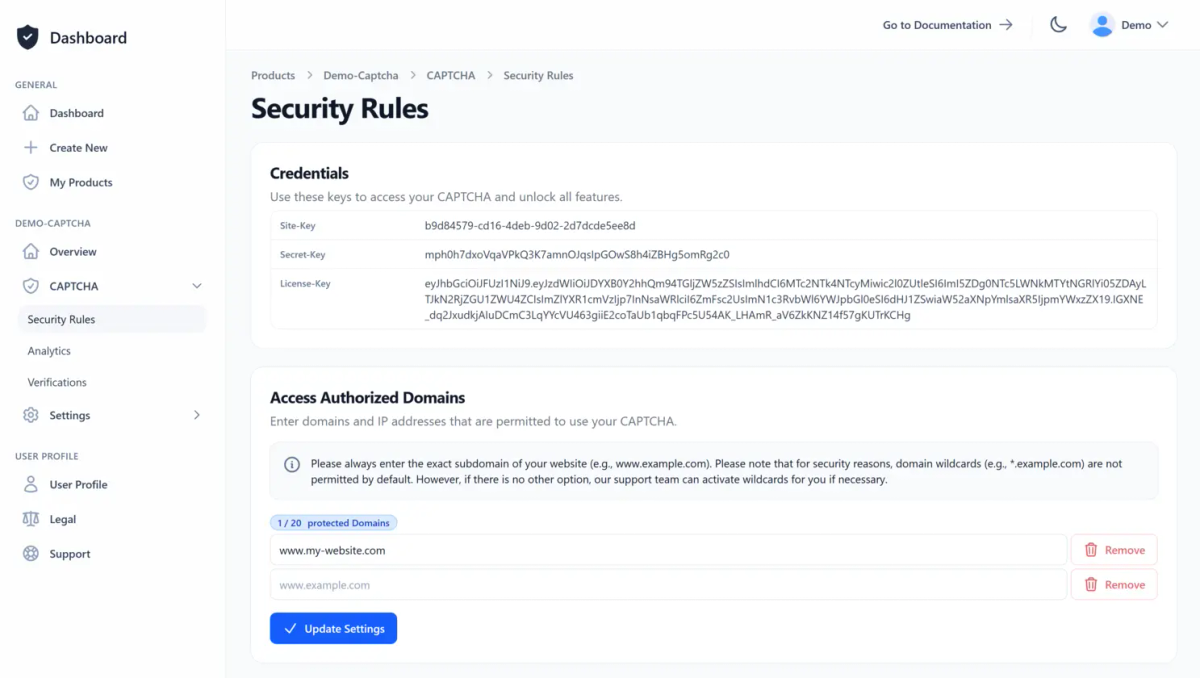
Create a user account or log in with an existing one. Then create a new CAPTCHA or select an existing one. If you’re unsure whether TrustCaptcha is right for you, try our CAPTCHA service risk-free for 14 days at no cost.
On the CAPTCHA overview page, you will find all the important information, such as the site key and licence key, and you can also create your API key. Allow your websites to access your CAPTCHA by simply adding them to the access authorised domain list in the CAPTCHA security rules.

2. Integrate the CAPTCHA Plugin
Install the Magento CAPTCHA extension via the Composer and Packagist. We are also planning to offer an installation option for the extension via the official plugin store in the near future. For precise, detailed instructions, please read the CAPTCHA integration guide for Magento 2 in our documentation.
Read the documentation
TrustCaptcha functions as a native Magento CAPTCHA replacement. Magento can decide whether a CAPTCHA is required and request it if necessary. Alternatively, the CAPTCHA can always be displayed. Currently, the following actions and forms are supported, among others:
- Customer Login
- Create Account / Registration
- Forgot Password
- Contact Form
- Product Review Submission
- Email to a Friend
- Share Wishlist
- Orders & Returns
Other frontend technology instead of Magento 2?
If you do not want to use Magento 2 or have several websites or applications, you can select a different framework or platform here. If there is no pre-built integration from us for your preferred frontend technology, your software developers can integrate the CAPTCHA themselves using our documentation or ask our support-team for a pre-built integration solution.


'/%3e%3c/svg%3e)


'%20%3e%3cg%20style=''%20%3e%3cg%20transform='matrix(1%200%200%201%20-9.1%200)'%20id='XMLID_563_'%20%3e%3cpath%20style='stroke:%20none;%20stroke-width:%201;%20stroke-dasharray:%20none;%20stroke-linecap:%20butt;%20stroke-dashoffset:%200;%20stroke-linejoin:%20miter;%20stroke-miterlimit:%204;%20fill:%20rgb(24,158,255);%20fill-rule:%20nonzero;%20opacity:%201;'%20transform='%20translate(-46,%20-55)'%20d='M%2087.8%2098%20c%20-4.8%20-3.6%20-11.8%20-6.3%20-19.3%20-9.2%20c%20-8.9%20-3.4%20-19%20-7.3%20-26.5%20-13.4%20C%2033.4%2068.6%2029.2%2060%2029.2%2049.1%20c%200%20-9.8%204%20-18.1%2011.7%20-24.1%20c%208.6%20-6.8%2021.6%20-10.3%2037.6%20-10.3%20c%204.4%200%208.7%200.3%2012.6%200.8%20c%200.3%200%200.7%20-0.1%200.8%20-0.5%20c%200.2%20-0.3%200.1%20-0.7%20-0.2%20-0.9%20C%2081.7%205%2068.6%200%2055%200%20C%2040.3%200%2026.5%205.7%2016.1%2016.1%20C%205.7%2026.5%200%2040.3%200%2055%20c%200%2014.7%205.7%2028.5%2016.1%2038.9%20C%2026.5%20104.3%2040.3%20110%2055%20110%20c%2011.9%200%2023.2%20-3.7%2032.7%20-10.8%20c%200.2%20-0.2%200.3%20-0.4%200.3%20-0.6%20C%2088.1%2098.4%2088%2098.2%2087.8%2098%20z'%20stroke-linecap='round'%20/%3e%3c/g%3e%3cg%20transform='matrix(1%200%200%201%2029.85%200.85)'%20id='XMLID_562_'%20%3e%3cpath%20style='stroke:%20none;%20stroke-width:%201;%20stroke-dasharray:%20none;%20stroke-linecap:%20butt;%20stroke-dashoffset:%200;%20stroke-linejoin:%20miter;%20stroke-miterlimit:%204;%20fill:%20rgb(24,158,255);%20fill-rule:%20nonzero;%20opacity:%201;'%20transform='%20translate(-84.95,%20-55.85)'%20d='M%20109.8%2049.9%20c%200%20-0.2%20-0.1%20-0.4%20-0.3%20-0.5%20C%2098.1%2039.9%2088.8%2036%2077.5%2036%20c%20-6%200%20-10.6%201.2%20-13.7%203.6%20c%20-2.7%202.1%20-4.1%204.9%20-4.1%208.3%20c%200%209.4%2011.6%2013.8%2024.9%2018.8%20c%206.9%202.6%2014%205.2%2020.6%208.9%20c%200.1%200.1%200.2%200.1%200.4%200.1%20c%200.1%200%200.2%200%200.3%20-0.1%20c%200.2%20-0.1%200.4%20-0.2%200.5%20-0.5%20c%202.5%20-6.4%203.8%20-13.2%203.8%20-20.1%20C%20110.1%2053.4%20110%2051.7%20109.8%2049.9%20z'%20stroke-linecap='round'%20/%3e%3c/g%3e%3c/g%3e%3c/g%3e%3c/svg%3e)


3. Configure the TrustCaptcha Plugin
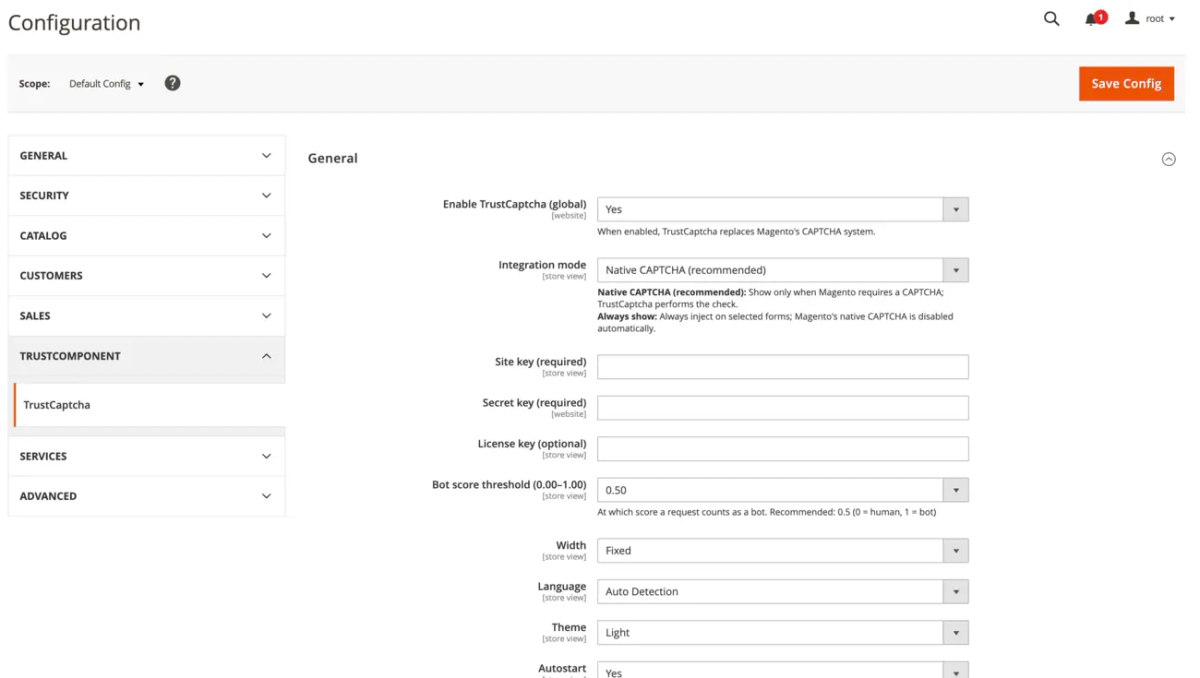
Login as an admin and go to Stores → Configuration → TrustComponent → TrustCaptcha. Set your site-key, API key (formerly secret-key) and if necessary the license key. Finally, customize TrustCaptcha to suit your needs. You can find more information about the installation in our Magento 2 documentation.
4. Congratulations 🎉
You are now protected by TrustCaptcha - congratulations!

FAQs
Which Magento 2 versions are supported?
What does the Magento 2 extension do in simple terms?
Which forms are protected out of the box?
Does it replace Magento’s built-in CAPTCHA or add a separate widget?
What is the bot score and what threshold should we use?
What happens when TrustCaptcha blocks a request?
Do you support Checkout protection?
TrustCaptcha blocks spam and bots, not customers. No puzzles, GDPR-ready, EU-hosted.


Protect your Magento 2 application with TrustCaptcha in just a few steps!
- EU-hosted & GDPR-ready
- No puzzles
- Try free for 14 days