

'%3e%3crect%20width='32'%20height='24'%20fill='white'/%3e%3cpath%20fill-rule='evenodd'%20clip-rule='evenodd'%20d='M0%200V24H32V0H0Z'%20fill='%232E42A5'/%3e%3cmask%20id='mask0_270_67386'%20style='mask-type:luminance'%20maskUnits='userSpaceOnUse'%20x='0'%20y='0'%20width='32'%20height='24'%3e%3cpath%20fill-rule='evenodd'%20clip-rule='evenodd'%20d='M0%200V24H32V0H0Z'%20fill='white'/%3e%3c/mask%3e%3cg%20mask='url(%23mask0_270_67386)'%3e%3cpath%20d='M-3.56323%2022.2854L3.47846%2025.2635L32.1597%203.23787L35.874%20-1.18761L28.344%20-2.18297L16.6456%207.3085L7.22956%2013.7035L-3.56323%2022.2854Z'%20fill='white'/%3e%3cpath%20d='M-2.59924%2024.3719L0.988173%2026.1001L34.5402%20-1.59881H29.5031L-2.59924%2024.3719Z'%20fill='%23F50100'/%3e%3cpath%20d='M35.5631%2022.2854L28.5214%2025.2635L-0.159817%203.23787L-3.87415%20-1.18761L3.65593%20-2.18297L15.3543%207.3085L24.7703%2013.7035L35.5631%2022.2854Z'%20fill='white'/%3e%3cpath%20d='M35.3229%2023.7829L31.7355%2025.5111L17.4487%2013.6518L13.2129%2012.3267L-4.23151%20-1.17246H0.805637L18.2403%2012.0063L22.8713%2013.5952L35.3229%2023.7829Z'%20fill='%23F50100'/%3e%3cmask%20id='path-7-inside-1_270_67386'%20fill='white'%3e%3cpath%20fill-rule='evenodd'%20clip-rule='evenodd'%20d='M19.7777%20-2H12.2222V8H-1.97253V16H12.2222V26H19.7777V16H34.0275V8H19.7777V-2Z'/%3e%3c/mask%3e%3cpath%20fill-rule='evenodd'%20clip-rule='evenodd'%20d='M19.7777%20-2H12.2222V8H-1.97253V16H12.2222V26H19.7777V16H34.0275V8H19.7777V-2Z'%20fill='%23F50100'/%3e%3cpath%20d='M12.2222%20-2V-4H10.2222V-2H12.2222ZM19.7777%20-2H21.7777V-4H19.7777V-2ZM12.2222%208V10H14.2222V8H12.2222ZM-1.97253%208V6H-3.97253V8H-1.97253ZM-1.97253%2016H-3.97253V18H-1.97253V16ZM12.2222%2016H14.2222V14H12.2222V16ZM12.2222%2026H10.2222V28H12.2222V26ZM19.7777%2026V28H21.7777V26H19.7777ZM19.7777%2016V14H17.7777V16H19.7777ZM34.0275%2016V18H36.0275V16H34.0275ZM34.0275%208H36.0275V6H34.0275V8ZM19.7777%208H17.7777V10H19.7777V8ZM12.2222%200H19.7777V-4H12.2222V0ZM14.2222%208V-2H10.2222V8H14.2222ZM-1.97253%2010H12.2222V6H-1.97253V10ZM0.0274658%2016V8H-3.97253V16H0.0274658ZM12.2222%2014H-1.97253V18H12.2222V14ZM14.2222%2026V16H10.2222V26H14.2222ZM19.7777%2024H12.2222V28H19.7777V24ZM17.7777%2016V26H21.7777V16H17.7777ZM34.0275%2014H19.7777V18H34.0275V14ZM32.0275%208V16H36.0275V8H32.0275ZM19.7777%2010H34.0275V6H19.7777V10ZM17.7777%20-2V8H21.7777V-2H17.7777Z'%20fill='white'%20mask='url(%23path-7-inside-1_270_67386)'/%3e%3c/g%3e%3c/g%3e%3cdefs%3e%3cclipPath%20id='clip0_270_67386'%3e%3crect%20width='32'%20height='24'%20fill='white'/%3e%3c/clipPath%3e%3c/defs%3e%3c/svg%3e)
'%3e%3crect%20width='32'%20height='24'%20fill='white'/%3e%3cpath%20fill-rule='evenodd'%20clip-rule='evenodd'%20d='M0%2016H32V24H0V16Z'%20fill='%23FFD018'/%3e%3cpath%20fill-rule='evenodd'%20clip-rule='evenodd'%20d='M0%208H32V16H0V8Z'%20fill='%23E31D1C'/%3e%3cpath%20fill-rule='evenodd'%20clip-rule='evenodd'%20d='M0%200H32V8H0V0Z'%20fill='%23272727'/%3e%3c/g%3e%3cdefs%3e%3cclipPath%20id='clip0_270_67353'%3e%3crect%20width='32'%20height='24'%20fill='white'/%3e%3c/clipPath%3e%3c/defs%3e%3c/svg%3e)
'%3e%3crect%20width='32'%20height='24'%20fill='white'/%3e%3cpath%20fill-rule='evenodd'%20clip-rule='evenodd'%20d='M22%200H32V24H22V0Z'%20fill='%23F50100'/%3e%3cpath%20fill-rule='evenodd'%20clip-rule='evenodd'%20d='M0%200H12V24H0V0Z'%20fill='%232E42A5'/%3e%3cpath%20fill-rule='evenodd'%20clip-rule='evenodd'%20d='M10%200H22V24H10V0Z'%20fill='%23F7FCFF'/%3e%3c/g%3e%3cdefs%3e%3cclipPath%20id='clip0_270_67361'%3e%3crect%20width='32'%20height='24'%20fill='white'/%3e%3c/clipPath%3e%3c/defs%3e%3c/svg%3e)

Spring Boot CAPTCHA Integration
Wire TrustCaptcha into a Spring Boot controller in just a few lines of Java. Stop bot-driven spam on logins, signups and contact forms — without breaking Thymeleaf templates, Bean Validation or Spring Security. EU-hosted, GDPR-ready, no image puzzles.
Quickstart
How the integration works
1. Create a CAPTCHA
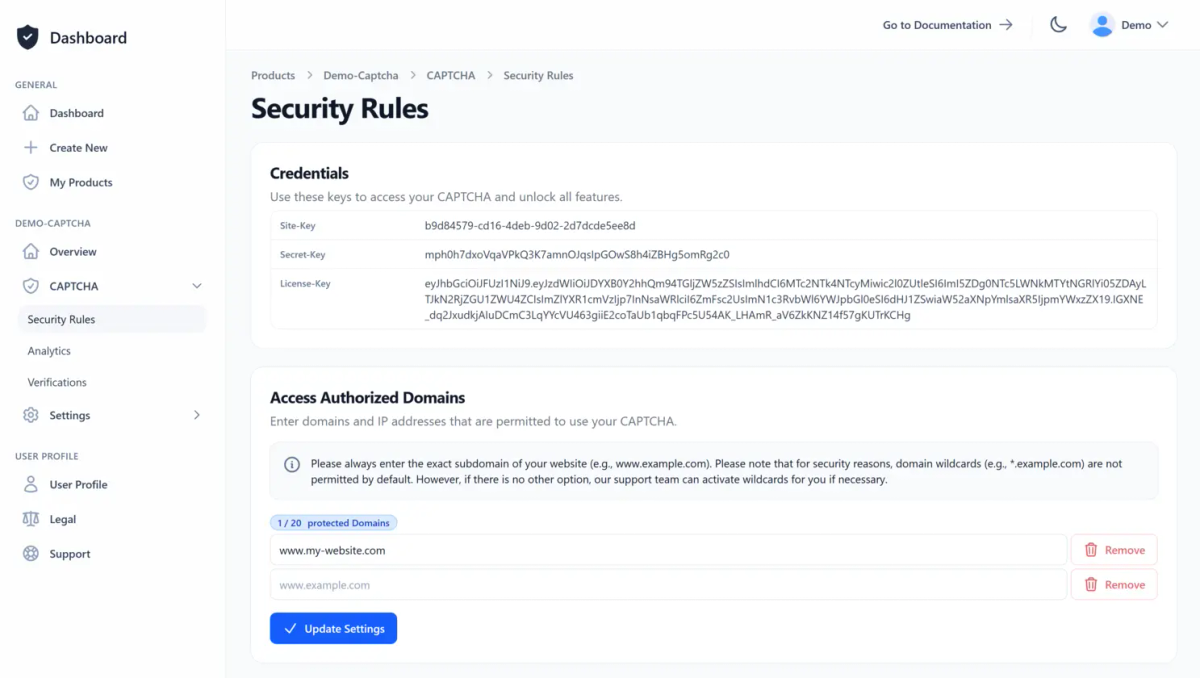
Create a user account or log in with an existing one. Then create a new CAPTCHA or select an existing one. If you’re unsure whether TrustCaptcha is right for you, try our CAPTCHA service risk-free for 14 days at no cost.
On the CAPTCHA overview page, you will find all the important information, such as the site key and licence key, and you can also create your API key. Allow your websites to access your CAPTCHA by simply adding them to the access authorised domain list in the CAPTCHA security rules.

2. Add the CAPTCHA widget to your Thymeleaf template
Drop the TrustCaptcha widget into the Thymeleaf form you want to protect. As soon as a visitor interacts with the form, the CAPTCHA runs in the background and adds a hidden tc-verification-token field on submit — Spring Boot will hand it to your controller like any other form parameter.
<script type="module" src="https://cdn.trustcomponent.com/trustcaptcha/3.0.x/trustcaptcha.esm.min.js"></script>

<form th:action="@{/contact}" method="post">
    <input type="email" name="email" required>
    <trustcaptcha-component sitekey="<your_site_key>"></trustcaptcha-component>
    <button type="submit">Send</button>
</form>
The CAPTCHA widget will then be displayed inside your form:

Need detailed information about the CAPTCHA widget integration?
For the full widget reference — including themes, languages, custom design and more — please read our documentation.
Read the documentation
3. Validate the token in your Spring Boot controller
In your Spring Boot controller, take the verification token from the form, look up the result via our Java library, and decide whether to accept the request.
First, install our TrustCaptcha Java library:
<dependency>
  <groupId>com.trustcomponent</groupId>
  <artifactId>trustcaptcha</artifactId>
  <version>3.0.0</version>
</dependency>
Then validate the token inside your controller and act on the result:
@PostMapping("/contact")
public String submit(@RequestParam("tc-verification-token") String token, Model model) {

  VerificationResult result;
  try {
    result = TrustCaptcha.getVerificationResult("<your_api_key>", token);
  } catch (CaptchaFailureException e) {
    return "contact"; // verification failed — show the form again
  }

  if (!result.isVerificationPassed() || result.getScore() > 0.5) {
    return "contact"; // looks like a bot — block it
  }

  // CAPTCHA passed — process the request
  return "contact-success";
}
Need detailed information about the Spring Boot CAPTCHA integration?
For full step-by-step instructions — including a Bean Validation refactor for projects with several protected endpoints — please read our documentation.
Read the documentation
Other backend framework instead of Spring Boot?
If you use a different framework, pick the matching recipe here. If your framework isn’t listed, your software developers can integrate the verification themselves using our documentation or ask our support team for a pre-built integration.


'%20gradientUnits='userSpaceOnUse'%20r='14'%3e%3cstop%20offset='0'%20stop-color='%237d7d7d'/%3e%3cstop%20offset='.267'%20stop-color='%237e7c7a'/%3e%3cstop%20offset='.45'%20stop-color='%23817871'/%3e%3cstop%20offset='.608'%20stop-color='%23867162'/%3e%3cstop%20offset='.753'%20stop-color='%238d684c'/%3e%3cstop%20offset='.886'%20stop-color='%23965c30'/%3e%3cstop%20offset='1'%20stop-color='%23a04f12'/%3e%3c/radialGradient%3e%3cpath%20d='m15.124%205.3a.832.832%200%201%201%20.832.832.832.832%200%200%201%20-.832-.832m-9.924%207.534a.832.832%200%201%201%20.832.832.832.832%200%200%201%20-.832-.832m19.856.039a.832.832%200%201%201%20.832.832.832.832%200%200%201%20-.832-.832m-17.451%201.14a.76.76%200%200%200%20.386-1l-.369-.835h1.452v6.545h-2.93a10.246%2010.246%200%200%201%20-.332-3.911zm6.074.161v-1.929h3.458c.179%200%201.261.206%201.261%201.016%200%20.672-.83.913-1.513.913zm-4.721%2010.387a.832.832%200%201%201%20.832.832.832.832%200%200%201%20-.832-.832m12.331.039a.832.832%200%201%201%20.832.832.832.832%200%200%201%20-.832-.832m.257-1.887a.759.759%200%200%200%20-.9.584l-.418%201.949a10.246%2010.246%200%200%201%20-8.545-.041l-.417-1.949a.758.758%200%200%200%20-.9-.583l-1.721.37a10.246%2010.246%200%200%201%20-.89-1.049h8.374c.095%200%20.158-.017.158-.1v-2.966c0-.086-.063-.1-.158-.1h-2.45v-1.881h2.649a1.665%201.665%200%200%201%201.629%201.412c.105.413.336%201.757.494%202.187.157.483.8%201.447%201.482%201.447h4.323a10.246%2010.246%200%200%201%20-.949%201.1zm4.65-7.821a10.246%2010.246%200%200%201%20.022%201.779h-1.051c-.105%200-.148.069-.148.172v.483c0%201.136-.641%201.384-1.2%201.447-.535.06-1.128-.224-1.2-.551a3.616%203.616%200%200%200%20-1.671-2.808c1.03-.654%202.1-1.619%202.1-2.911a3.293%203.293%200%200%200%20-1.608-2.7%204.562%204.562%200%200%200%20-2.2-.724h-10.873a10.246%2010.246%200%200%201%205.733-3.239l1.282%201.344a.758.758%200%200%200%201.073.025l1.434-1.372a10.246%2010.246%200%200%201%207.015%205l-.982%202.217a.761.761%200%200%200%20.386%201zm2.448.036-.033-.343%201.011-.943a.421.421%200%200%200%20-.134-.676l-1.288-.483-.1-.334.806-1.12a.421.421%200%200%200%20-.263-.636l-1.363-.222-.164-.306.573-1.257a.419.419%200%200%200%20-.382-.573l-1.383.048-.224-.264.318-1.347a.421.421%200%200%200%20-.487-.487l-1.348.315-.266-.219.049-1.381a.421.421%200%200%200%20-.572-.383l-1.257.573-.306-.164-.222-1.363a.421.421%200%200%200%20-.636-.263l-1.121.806-.333-.1-.483-1.293a.421.421%200%200%200%20-.675-.135l-.943%201.012-.343-.033-.728-1.177a.421.421%200%200%200%20-.688%200l-.728%201.177-.343.033-.943-1.012a.421.421%200%200%200%20-.675.135l-.487%201.287-.333.1-1.12-.8a.421.421%200%200%200%20-.636.263l-.222%201.363-.306.164-1.258-.573a.42.42%200%200%200%20-.572.383l.048%201.383-.266.217-1.347-.316a.421.421%200%200%200%20-.487.487l.316%201.348-.218.265-1.382-.048a.422.422%200%200%200%20-.383.573l.573%201.257-.164.306-1.363.222a.421.421%200%200%200%20-.263.636l.806%201.12-.1.334-1.293.483a.421.421%200%200%200%20-.134.676l1.011.943-.033.343-1.177.728a.421.421%200%200%200%200%20.688l1.177.728.033.343-1.011.943a.421.421%200%200%200%20.134.675l1.293.483.1.334-.806%201.121a.421.421%200%200%200%20.264.636l1.363.222.164.307-.573%201.257a.421.421%200%200%200%20.383.573l1.383-.048.219.266-.317%201.348a.42.42%200%200%200%20.487.486l1.345-.319.266.218-.049%201.382a.42.42%200%200%200%20.572.382l1.257-.573.306.164.222%201.362a.421.421%200%200%200%20.636.264l1.12-.807.334.1.483%201.292a.421.421%200%200%200%20.675.134l.943-1.011.343.034.728%201.177a.422.422%200%200%200%20.688%200l.728-1.177.343-.034.943%201.011a.421.421%200%200%200%20.675-.134l.483-1.292.334-.1%201.12.807a.421.421%200%200%200%20.636-.264l.222-1.362.306-.164%201.257.573a.42.42%200%200%200%20.572-.382l-.048-1.384.265-.218%201.347.317a.42.42%200%200%200%20.487-.486l-.312-1.346.218-.266%201.383.048a.421.421%200%200%200%20.382-.573l-.573-1.257.164-.307%201.363-.222a.42.42%200%200%200%20.263-.636l-.806-1.12.1-.334%201.293-.483a.42.42%200%200%200%20.134-.675l-1.011-.943.033-.343%201.177-.728a.421.421%200%200%200%200-.688z'%20fill='url(%23a)'/%3e%3c/svg%3e)









'%20d='M106.317%20112.014%2049.167%2038.4H38.4v51.179h8.614v-40.24l52.54%2067.884a64.216%2064.216%200%200%200%206.763-5.209z'/%3e%3cpath%20fill='url(%23b)'%20d='M81.778%2038.4h8.533v51.2h-8.533z'/%3e%3cdefs%3e%3clinearGradient%20id='a'%20x1='109'%20x2='144.5'%20y1='116.5'%20y2='160.5'%20gradientTransform='scale(.71111)'%20gradientUnits='userSpaceOnUse'%3e%3cstop%20stop-color='%23fff'/%3e%3cstop%20offset='1'%20stop-color='%23fff'%20stop-opacity='0'/%3e%3c/linearGradient%3e%3clinearGradient%20id='b'%20x1='121'%20x2='120.799'%20y1='54'%20y2='106.875'%20gradientTransform='scale(.71111)'%20gradientUnits='userSpaceOnUse'%3e%3cstop%20stop-color='%23fff'/%3e%3cstop%20offset='1'%20stop-color='%23fff'%20stop-opacity='0'/%3e%3c/linearGradient%3e%3c/defs%3e%3c/svg%3e)


'%20gradientUnits='userSpaceOnUse'%3e%3cstop%20offset='.694'%20stop-color='%23afadae'/%3e%3cstop%20offset='.968'%20stop-color='%23afadae'%20stop-opacity='0'/%3e%3c/radialGradient%3e%3cpath%20fill='url(%23SVGDCoj9d3D)'%20d='M5%20123c0-27.8%2056.2-50.3%20125.5-50.3S256%2095.2%20256%20123s-56.2%2050.3-125.5%2050.3C61.2%20173.4%205%20150.8%205%20123'/%3e%3cradialGradient%20id='SVGr91dAJqS'%20cx='178.61'%20cy='90.852'%20r='177.391'%20gradientTransform='matrix(-.9856%20.1689%20-.09166%20-.535%20362.983%20109.296)'%20gradientUnits='userSpaceOnUse'%3e%3cstop%20offset='.476'%20stop-color='%23f3efe9'/%3e%3cstop%20offset='.568'%20stop-color='%23eeeae3'/%3e%3cstop%20offset='.688'%20stop-color='%23e1dbd2'/%3e%3cstop%20offset='.824'%20stop-color='%23cdc5b7'/%3e%3cstop%20offset='.963'%20stop-color='%23b4aa98'/%3e%3c/radialGradient%3e%3cpath%20fill='url(%23SVGr91dAJqS)'%20d='M2.9%20127.8s-20.6-40%2047.4-62.4C82.1%2054.9%20119.4%2048%20152.7%2046.8c38-1.3%2071.7%205.3%2086.4%2027.7c10.6%2016.2%204.2%2036-16.3%2051.4c-12.3%209.2-39.3%2018.4-57.3%2023.6c-18%205.1-53.3%2012-82.2%2010.4s-64.8-5.8-80.4-32.1'/%3e%3cpath%20fill='%23cec7bc'%20d='M2.9%20127.8s-20.6-40%2047.4-62.4C82.1%2054.9%20119.4%2048%20152.7%2046.8c38-1.3%2071.7%205.3%2086.4%2027.7c10.6%2016.2%204.2%2036-16.3%2051.4c-12.3%209.2-39.3%2018.4-57.3%2023.6c-18%205.1-53.3%2012-82.2%2010.4s-64.8-5.8-80.4-32.1m81%2030.9c28.2%201.6%2062.6-5.2%2080.1-10.2s44.2-13.6%2056.2-22.6c20-15%2028.1-33.7%2016.9-50.9c-14.2-22-48.7-28.8-85.7-27.5c-32.4%201.1-68.8%208.8-99.8%2019c-66.3%2021.9-46.2%2060.9-46.2%2060.9c15.3%2025.6%2050.3%2029.7%2078.5%2031.3'/%3e%3clinearGradient%20id='SVGV0R5xcIw'%20x1='53.662'%20x2='197.066'%20y1='47.58'%20y2='58.425'%20gradientUnits='userSpaceOnUse'%3e%3cstop%20offset='.094'%20stop-color='%23d7d0c6'/%3e%3cstop%20offset='.248'%20stop-color='%23cdc7bb'/%3e%3cstop%20offset='.401'%20stop-color='%23c7c2b5'/%3e%3cstop%20offset='.525'%20stop-color='%23cbc6ba'/%3e%3cstop%20offset='.669'%20stop-color='%23d7d1c7'/%3e%3cstop%20offset='.78'%20stop-color='%23e6dfd6'/%3e%3cstop%20offset='.892'%20stop-color='%23e7e3d9'/%3e%3cstop%20offset='.934'%20stop-color='%23e5dfd3'/%3e%3cstop%20offset='.98'%20stop-color='%23dfd5c6'/%3e%3c/linearGradient%3e%3cpath%20fill='url(%23SVGV0R5xcIw)'%20d='M57.3%2095.9c-5.9-4.3-14.2-25.4-11-30s8-14.2%2010.7-23.6c2.7-9.3%206.5-29.1%2014-36.1s18.7-7%2033.5-5.4c14.7%201.6%2057.8%209.4%2068.3%2013.1c10.4%203.7%2024%2010.7%2023.2%2027s.7%2024.4-1.2%2033.5s-21.7%2026.8-46.6%2028.1c-25%201.5-85-2.3-90.9-6.6'/%3e%3cradialGradient%20id='SVGMYSYVsVW'%20cx='110.123'%20cy='23.771'%20r='53.767'%20gradientTransform='rotate(84.941%20132.128%2043.915)scale(1%202.6947)'%20gradientUnits='userSpaceOnUse'%3e%3cstop%20offset='.067'%20stop-color='%23b2a797'/%3e%3cstop%20offset='.29'%20stop-color='%23c7bdae'/%3e%3cstop%20offset='.481'%20stop-color='%23d6cebf'/%3e%3cstop%20offset='.688'%20stop-color='%23e2dcd0'/%3e%3cstop%20offset='.942'%20stop-color='%23f7f5ee'/%3e%3c/radialGradient%3e%3cpath%20fill='url(%23SVGMYSYVsVW)'%20d='M127.8%2075.8s25.7-3.4%2041.2-17.9s1.8-24.9-2.4-27.5S148.3%2021%20126%2022s-44.3%201.2-42.8%2017.7c1.5%2016.4%2019.5%2036.1%2044.6%2036.1'/%3e%3clinearGradient%20id='SVGaA6utbiG'%20x1='69.277'%20x2='177.061'%20y1='15.553'%20y2='15.553'%20gradientUnits='userSpaceOnUse'%3e%3cstop%20offset='.056'%20stop-color='%23f7f5ee'/%3e%3cstop%20offset='.226'%20stop-color='%23e6e1d6'/%3e%3cstop%20offset='.43'%20stop-color='%23d8d1c3'/%3e%3cstop%20offset='.639'%20stop-color='%23d0c8b9'/%3e%3cstop%20offset='.857'%20stop-color='%23cec5b5'/%3e%3c/linearGradient%3e%3cpath%20fill='url(%23SVGaA6utbiG)'%20d='M71%2026.2c-2.8-1.8-3.2-11.6%207.2-18.3c10.4-6.6%2037.2-2.6%2054.6%201.6c17.5%204.2%2045.7%2010.1%2044.2%2011.7c-1.5%201.5-43.5-3.6-62.7-2.6C88.2%2020%2075.4%2029%2071%2026.2'/%3e%3clinearGradient%20id='SVGUxwpOefo'%20x1='42.47'%20x2='196.375'%20y1='94.53'%20y2='94.53'%20gradientUnits='userSpaceOnUse'%3e%3cstop%20offset='.018'%20stop-color='%23262222'/%3e%3cstop%20offset='.096'%20stop-color='%232f2c2c'/%3e%3cstop%20offset='.3'%20stop-color='%23424143'/%3e%3cstop%20offset='.402'%20stop-color='%234a4a4c'/%3e%3cstop%20offset='.514'%20stop-color='%234a4a4c'/%3e%3cstop%20offset='.78'%20stop-color='%23383536'/%3e%3cstop%20offset='1'%20stop-color='%23262222'/%3e%3c/linearGradient%3e%3cpath%20fill='url(%23SVGUxwpOefo)'%20d='M195.6%2071.7c-.3%200-.4.9-.8%201.4c-3.3%205.4-13.1%2014.6-35.4%2014.6H98.8c-38.2%200-49.3-10.3-52.1-17.7c-.2-.7-.5-1.6-.8-1.6s-.5%201.6-.5%201.6l-2.9%2027.7c0%2012.7%2032.9%2023%2075.2%2023s78.6-6%2078.6-23c0%200%20.2-16.9.1-24.4c0-.8-.1-1.6-.8-1.6'/%3e%3c/svg%3e)

4. Congratulations 🎉
You are now protected by TrustCaptcha - congratulations!

FAQs
Which Spring Boot versions are supported?
Where in my Spring Boot app should the CAPTCHA verification happen?
Can I use TrustCaptcha together with Spring Security?
Can I trigger CAPTCHA validation through Bean Validation (@Valid)?
Does TrustCaptcha work with WebFlux / reactive controllers?
Where should I store the CAPTCHA API key in a Spring Boot project?
TrustCaptcha blocks spam and bots, not customers. No puzzles, GDPR-ready, EU-hosted.


Protect your Spring Boot application with TrustCaptcha in just a few steps!
- EU-hosted & GDPR-ready
- No puzzles
- Try free for 14 days