
'%3e%3crect%20width='32'%20height='24'%20fill='white'/%3e%3cpath%20fill-rule='evenodd'%20clip-rule='evenodd'%20d='M0%200V24H32V0H0Z'%20fill='%232E42A5'/%3e%3cmask%20id='mask0_270_67386'%20style='mask-type:luminance'%20maskUnits='userSpaceOnUse'%20x='0'%20y='0'%20width='32'%20height='24'%3e%3cpath%20fill-rule='evenodd'%20clip-rule='evenodd'%20d='M0%200V24H32V0H0Z'%20fill='white'/%3e%3c/mask%3e%3cg%20mask='url(%23mask0_270_67386)'%3e%3cpath%20d='M-3.56323%2022.2854L3.47846%2025.2635L32.1597%203.23787L35.874%20-1.18761L28.344%20-2.18297L16.6456%207.3085L7.22956%2013.7035L-3.56323%2022.2854Z'%20fill='white'/%3e%3cpath%20d='M-2.59924%2024.3719L0.988173%2026.1001L34.5402%20-1.59881H29.5031L-2.59924%2024.3719Z'%20fill='%23F50100'/%3e%3cpath%20d='M35.5631%2022.2854L28.5214%2025.2635L-0.159817%203.23787L-3.87415%20-1.18761L3.65593%20-2.18297L15.3543%207.3085L24.7703%2013.7035L35.5631%2022.2854Z'%20fill='white'/%3e%3cpath%20d='M35.3229%2023.7829L31.7355%2025.5111L17.4487%2013.6518L13.2129%2012.3267L-4.23151%20-1.17246H0.805637L18.2403%2012.0063L22.8713%2013.5952L35.3229%2023.7829Z'%20fill='%23F50100'/%3e%3cmask%20id='path-7-inside-1_270_67386'%20fill='white'%3e%3cpath%20fill-rule='evenodd'%20clip-rule='evenodd'%20d='M19.7777%20-2H12.2222V8H-1.97253V16H12.2222V26H19.7777V16H34.0275V8H19.7777V-2Z'/%3e%3c/mask%3e%3cpath%20fill-rule='evenodd'%20clip-rule='evenodd'%20d='M19.7777%20-2H12.2222V8H-1.97253V16H12.2222V26H19.7777V16H34.0275V8H19.7777V-2Z'%20fill='%23F50100'/%3e%3cpath%20d='M12.2222%20-2V-4H10.2222V-2H12.2222ZM19.7777%20-2H21.7777V-4H19.7777V-2ZM12.2222%208V10H14.2222V8H12.2222ZM-1.97253%208V6H-3.97253V8H-1.97253ZM-1.97253%2016H-3.97253V18H-1.97253V16ZM12.2222%2016H14.2222V14H12.2222V16ZM12.2222%2026H10.2222V28H12.2222V26ZM19.7777%2026V28H21.7777V26H19.7777ZM19.7777%2016V14H17.7777V16H19.7777ZM34.0275%2016V18H36.0275V16H34.0275ZM34.0275%208H36.0275V6H34.0275V8ZM19.7777%208H17.7777V10H19.7777V8ZM12.2222%200H19.7777V-4H12.2222V0ZM14.2222%208V-2H10.2222V8H14.2222ZM-1.97253%2010H12.2222V6H-1.97253V10ZM0.0274658%2016V8H-3.97253V16H0.0274658ZM12.2222%2014H-1.97253V18H12.2222V14ZM14.2222%2026V16H10.2222V26H14.2222ZM19.7777%2024H12.2222V28H19.7777V24ZM17.7777%2016V26H21.7777V16H17.7777ZM34.0275%2014H19.7777V18H34.0275V14ZM32.0275%208V16H36.0275V8H32.0275ZM19.7777%2010H34.0275V6H19.7777V10ZM17.7777%20-2V8H21.7777V-2H17.7777Z'%20fill='white'%20mask='url(%23path-7-inside-1_270_67386)'/%3e%3c/g%3e%3c/g%3e%3cdefs%3e%3cclipPath%20id='clip0_270_67386'%3e%3crect%20width='32'%20height='24'%20fill='white'/%3e%3c/clipPath%3e%3c/defs%3e%3c/svg%3e)
'%3e%3crect%20width='32'%20height='24'%20fill='white'/%3e%3cpath%20fill-rule='evenodd'%20clip-rule='evenodd'%20d='M0%2016H32V24H0V16Z'%20fill='%23FFD018'/%3e%3cpath%20fill-rule='evenodd'%20clip-rule='evenodd'%20d='M0%208H32V16H0V8Z'%20fill='%23E31D1C'/%3e%3cpath%20fill-rule='evenodd'%20clip-rule='evenodd'%20d='M0%200H32V8H0V0Z'%20fill='%23272727'/%3e%3c/g%3e%3cdefs%3e%3cclipPath%20id='clip0_270_67353'%3e%3crect%20width='32'%20height='24'%20fill='white'/%3e%3c/clipPath%3e%3c/defs%3e%3c/svg%3e)
'%3e%3crect%20width='32'%20height='24'%20fill='white'/%3e%3cpath%20fill-rule='evenodd'%20clip-rule='evenodd'%20d='M22%200H32V24H22V0Z'%20fill='%23F50100'/%3e%3cpath%20fill-rule='evenodd'%20clip-rule='evenodd'%20d='M0%200H12V24H0V0Z'%20fill='%232E42A5'/%3e%3cpath%20fill-rule='evenodd'%20clip-rule='evenodd'%20d='M10%200H22V24H10V0Z'%20fill='%23F7FCFF'/%3e%3c/g%3e%3cdefs%3e%3cclipPath%20id='clip0_270_67361'%3e%3crect%20width='32'%20height='24'%20fill='white'/%3e%3c/clipPath%3e%3c/defs%3e%3c/svg%3e)
Introduction: what status page examples have in common
A status page is where customers go when they want a quick answer: is it working right now? The best status pages answer that in seconds and earn trust long after an incident is resolved.
This guide walks through status page examples for six common situations, from a SaaS product to an internal IT page, shows how to word updates, and explains how to create a status page in five steps.
The building blocks of every status page
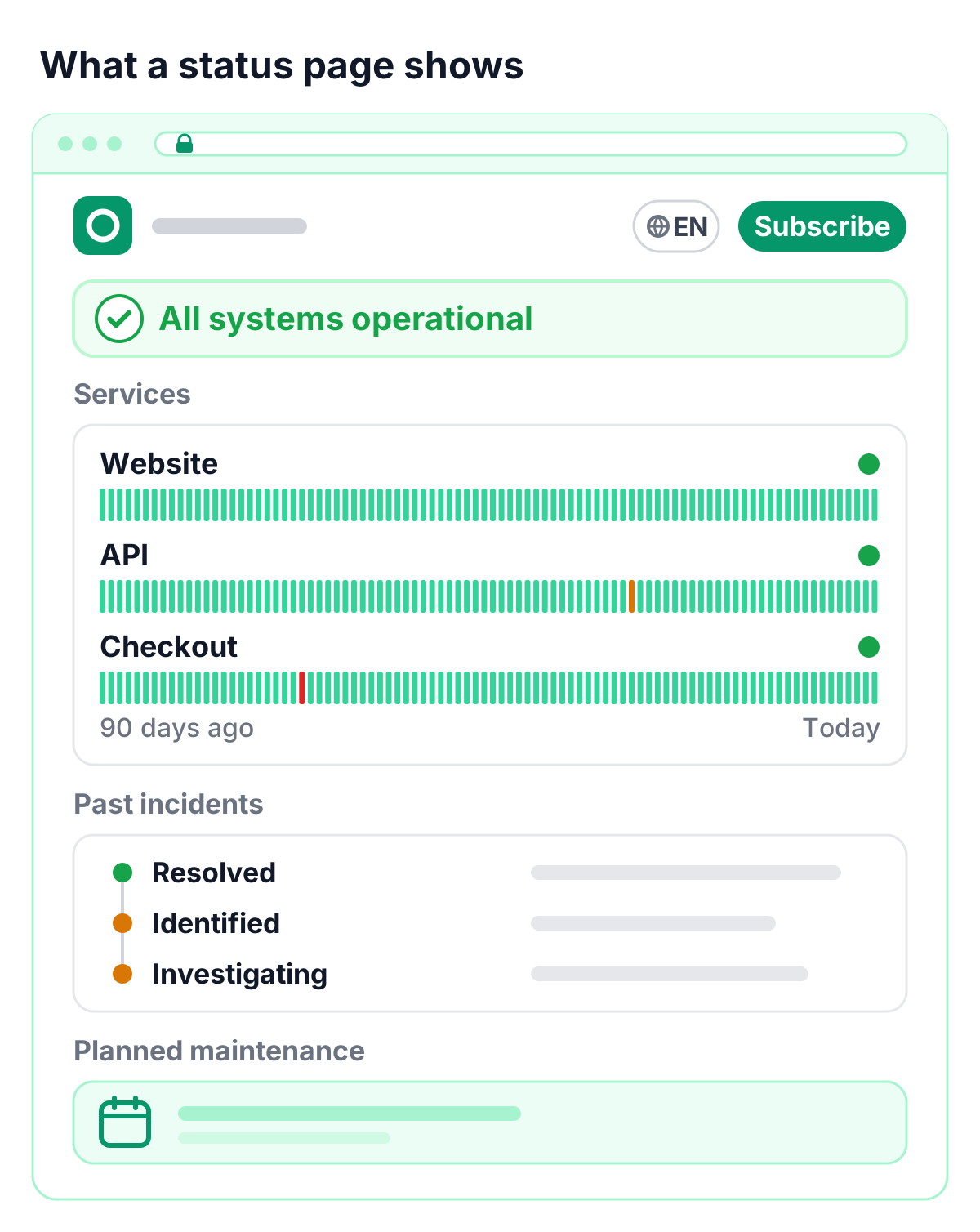
Whatever the audience, a strong status page example is built from the same elements:
- An overall status at the top: “All systems operational” or a clear summary of what is affected
- Services your audience recognizes, such as “Website”, “API” or “Checkout”, rather than internal server names
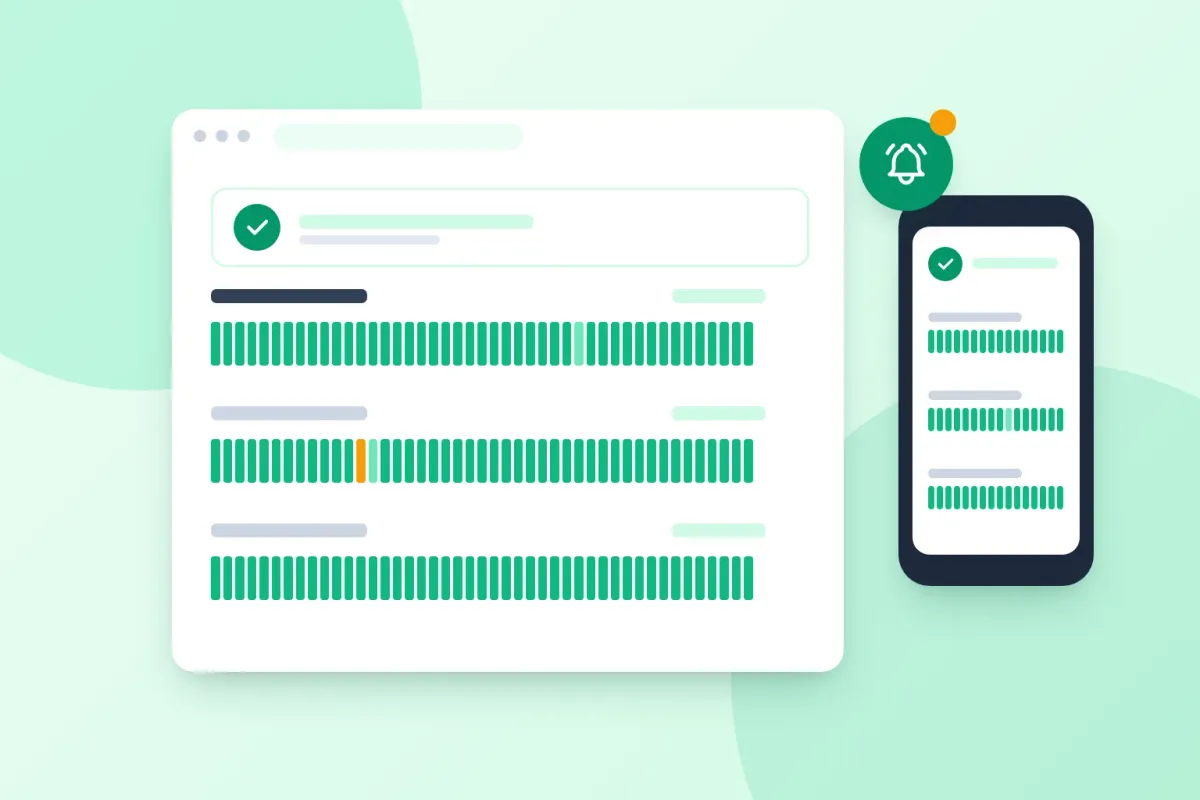
- Uptime history, for example 90 days of daily bars per service
- Incidents with a timeline of updates, from the first notice to the resolution
- Planned maintenance, announced in advance
- A subscribe option, so visitors receive updates without checking back
- Your branding, domain and language, so the page feels like part of your product
Six status page examples by use case
1. Public status page for a SaaS product
A status page for SaaS products usually lists the parts of the product customers use every day: web app, API, login and single sign-on, notifications and integrations. Uptime history per service shows your track record, and subscriptions keep customers informed by email or chat. For many SaaS teams, the public status page is also a sales asset: prospects can see your reliability before they sign.
2. API status page
Developers who integrate your API want specific information. An API status page groups endpoints the way your documentation does (for example by API version or region) and is linked from your developer docs. Clear wording such as “Elevated response times on the Orders API” helps developers decide quickly whether an error is on their side.
3. Service status page for an online shop
For an online shop, a service status page focuses on the customer journey: storefront, search, checkout, payment and order emails. During an incident, a short note on the storefront linking to the status page lets customers see what is happening without contacting support.
4. Internal status page for IT and operations
An internal status page shows the health of the tools your colleagues rely on: email, VPN, file storage, HR and finance systems. It typically shows more technical detail than a public page, is restricted to your organization with a password or an IP allow-list, and is set to noindex.
5. Private status page for partners and enterprise customers
Partners and enterprise customers sometimes need their own view: dedicated integrations, regional infrastructure or contract-specific services. A private status page gives them exactly that, behind access control, while your public page stays focused on the general audience.
6. Branded status pages for agency clients
Agencies that run websites for clients can give each client a custom status page: the client’s services, the client’s domain and the client’s branding. A branded status page, or a fully white-label one, shows your clients that their websites are monitored and cared for.
A live status page example
Want to see a status page in action? Our own live status page shows the services behind TrustComponent, with current status and uptime history.
How to word status page updates
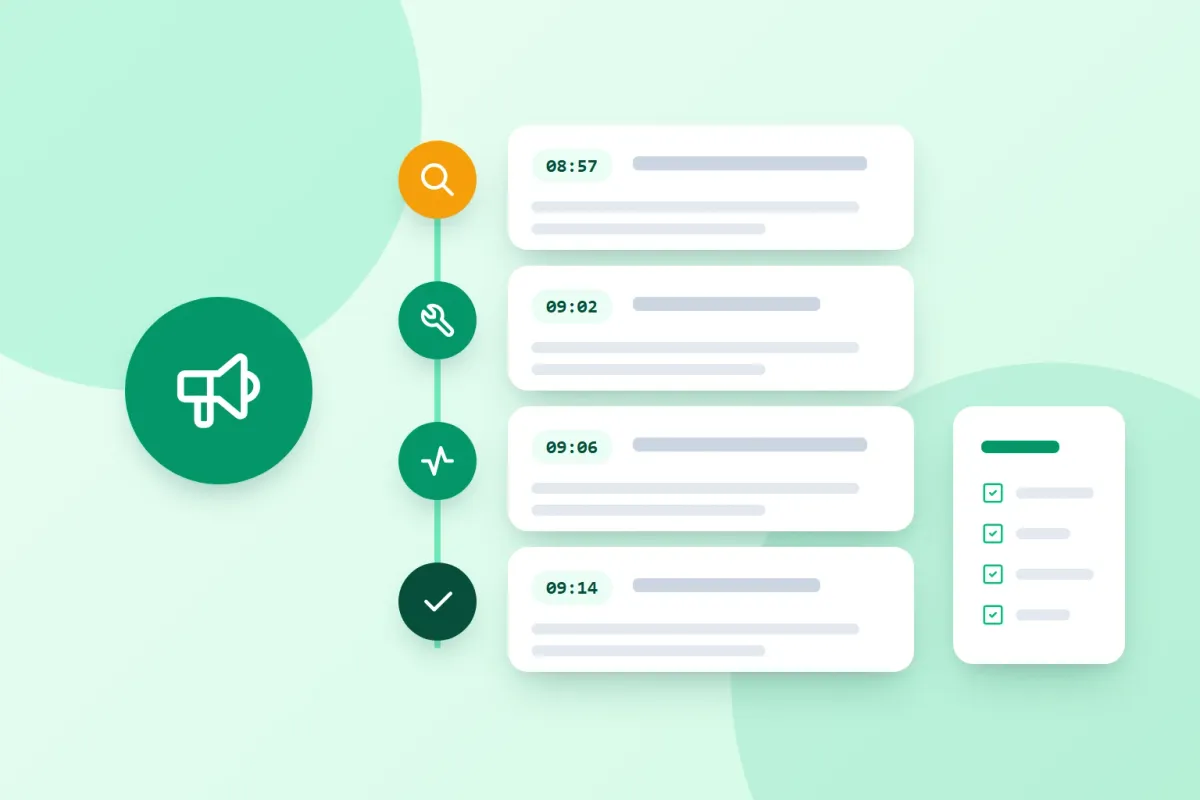
A status page update does not need to be long. It needs to answer three questions: what is affected, what are you doing, and when is the next update? A typical incident timeline looks like this:
| Stage | Example update |
|---|---|
| Investigating | We are investigating elevated response times on the API. Next update by 09:30 CET. |
| Identified | We have identified the cause and are rolling out a fix. Next update by 09:45 CET. |
| Monitoring | The fix is in place and response times are back to normal. We are monitoring the results. |
| Resolved | The API has been fully operational since 09:41 CET. A post-mortem will follow. |
Our guide to building an incident communication plan has complete, copyable templates, from the first outage notice to the post-mortem.
How to create a status page in five steps
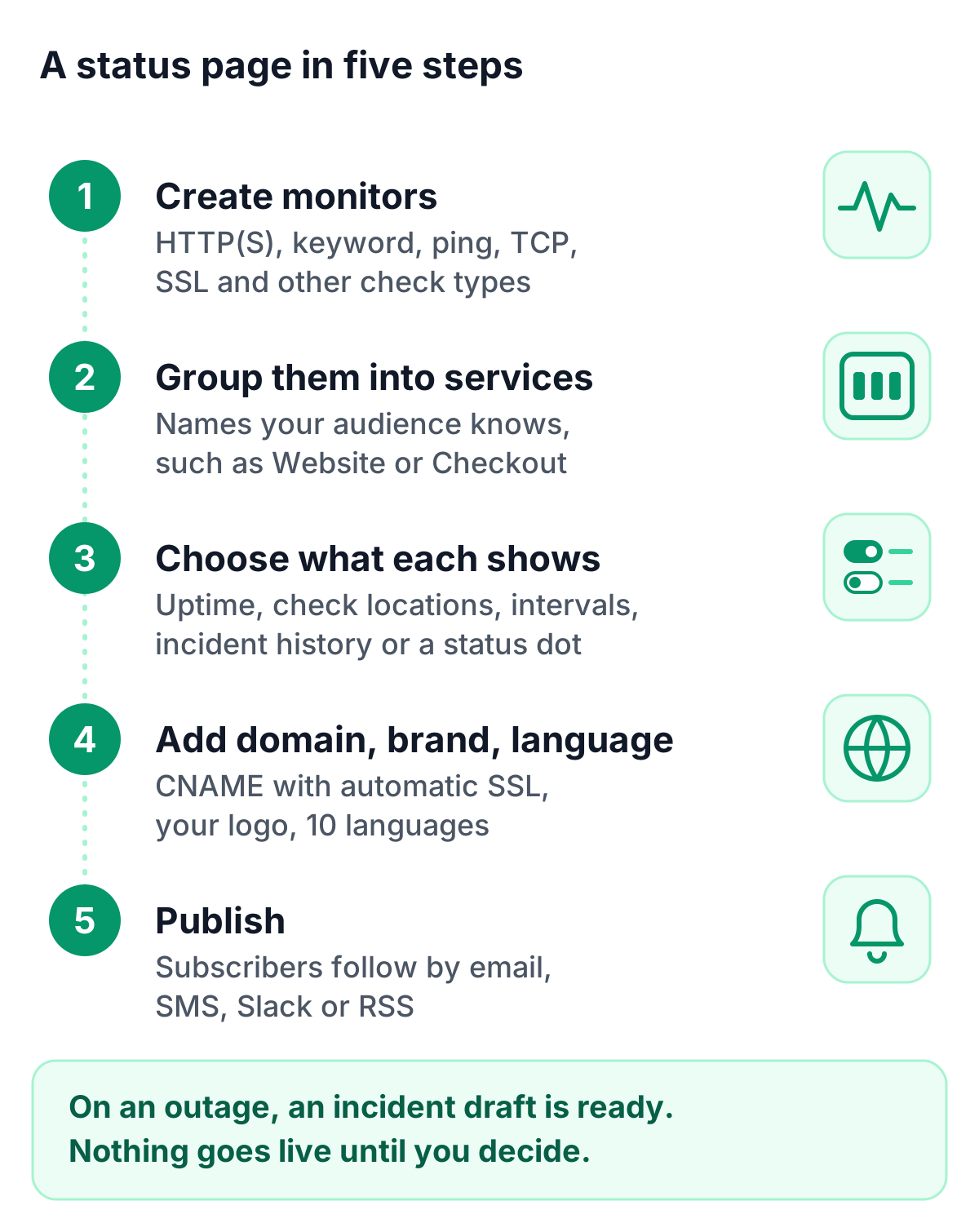
Here is how to make a status page with TrustComponent Monitoring:
- Create monitors for your websites, APIs and servers, using HTTP(S), keyword, ping, TCP, SSL and other check types.
- Group monitors into services that your audience recognizes, such as “Website” or “Checkout”. Each service shows the combined state of its monitors.
- Choose what each service shows: uptime statistics, check locations, intervals, incident history, or just a status dot.
- Add your domain, branding and language: point a CNAME at the page for a custom domain with automatic SSL, upload your logo and choose from 10 languages.
- Publish and invite subscribers: visitors subscribe by email, SMS, Slack or RSS (email and SMS with double opt-in), and every incident update reaches them automatically.
When a monitored service has an outage, an incident draft is created for you. Nothing is published until you decide.
Status page best practices
- Name services from your customers’ point of view.
- Post the first update quickly, even if it only says that you are investigating.
- Always include the time of the next update.
- Announce planned maintenance in advance and notify subscribers.
- Keep internal details in internal notes, and the public timeline clear and calm.
- Close every major incident with a short post-mortem.
- Use one page per audience: public for customers, restricted for internal teams and partners.
How TrustComponent Monitoring supports your status page
TrustComponent status pages are hosted for you and connected to your monitoring:
- Live status, 90-day uptime history, incidents and maintenance on one page
- Custom domain with automatic SSL, your logo, colors and light or dark theme, in 10 languages
- Public, internal and private pages per project; password and IP access control and white-label with the Status Page Pro add-on
- Subscriber notifications with double opt-in, and subscribe forms protected by TrustCaptcha
- SEO controls, or noindex for pages that should not be found
Every plan, including the Free plan, comes with at least one status page.
Conclusion
The best status page examples share one quality: they answer the visitor’s question in seconds. Choose the right audience for each page, name services clearly, and keep updates short and regular. Connected to your monitoring, your status page becomes a calm, reliable source of truth, during incidents and every day in between.
Get started
👉 Create your status page with TrustComponent Monitoring, free plan included.