
'%3e%3crect%20width='32'%20height='24'%20fill='white'/%3e%3cpath%20fill-rule='evenodd'%20clip-rule='evenodd'%20d='M0%200V24H32V0H0Z'%20fill='%232E42A5'/%3e%3cmask%20id='mask0_270_67386'%20style='mask-type:luminance'%20maskUnits='userSpaceOnUse'%20x='0'%20y='0'%20width='32'%20height='24'%3e%3cpath%20fill-rule='evenodd'%20clip-rule='evenodd'%20d='M0%200V24H32V0H0Z'%20fill='white'/%3e%3c/mask%3e%3cg%20mask='url(%23mask0_270_67386)'%3e%3cpath%20d='M-3.56323%2022.2854L3.47846%2025.2635L32.1597%203.23787L35.874%20-1.18761L28.344%20-2.18297L16.6456%207.3085L7.22956%2013.7035L-3.56323%2022.2854Z'%20fill='white'/%3e%3cpath%20d='M-2.59924%2024.3719L0.988173%2026.1001L34.5402%20-1.59881H29.5031L-2.59924%2024.3719Z'%20fill='%23F50100'/%3e%3cpath%20d='M35.5631%2022.2854L28.5214%2025.2635L-0.159817%203.23787L-3.87415%20-1.18761L3.65593%20-2.18297L15.3543%207.3085L24.7703%2013.7035L35.5631%2022.2854Z'%20fill='white'/%3e%3cpath%20d='M35.3229%2023.7829L31.7355%2025.5111L17.4487%2013.6518L13.2129%2012.3267L-4.23151%20-1.17246H0.805637L18.2403%2012.0063L22.8713%2013.5952L35.3229%2023.7829Z'%20fill='%23F50100'/%3e%3cmask%20id='path-7-inside-1_270_67386'%20fill='white'%3e%3cpath%20fill-rule='evenodd'%20clip-rule='evenodd'%20d='M19.7777%20-2H12.2222V8H-1.97253V16H12.2222V26H19.7777V16H34.0275V8H19.7777V-2Z'/%3e%3c/mask%3e%3cpath%20fill-rule='evenodd'%20clip-rule='evenodd'%20d='M19.7777%20-2H12.2222V8H-1.97253V16H12.2222V26H19.7777V16H34.0275V8H19.7777V-2Z'%20fill='%23F50100'/%3e%3cpath%20d='M12.2222%20-2V-4H10.2222V-2H12.2222ZM19.7777%20-2H21.7777V-4H19.7777V-2ZM12.2222%208V10H14.2222V8H12.2222ZM-1.97253%208V6H-3.97253V8H-1.97253ZM-1.97253%2016H-3.97253V18H-1.97253V16ZM12.2222%2016H14.2222V14H12.2222V16ZM12.2222%2026H10.2222V28H12.2222V26ZM19.7777%2026V28H21.7777V26H19.7777ZM19.7777%2016V14H17.7777V16H19.7777ZM34.0275%2016V18H36.0275V16H34.0275ZM34.0275%208H36.0275V6H34.0275V8ZM19.7777%208H17.7777V10H19.7777V8ZM12.2222%200H19.7777V-4H12.2222V0ZM14.2222%208V-2H10.2222V8H14.2222ZM-1.97253%2010H12.2222V6H-1.97253V10ZM0.0274658%2016V8H-3.97253V16H0.0274658ZM12.2222%2014H-1.97253V18H12.2222V14ZM14.2222%2026V16H10.2222V26H14.2222ZM19.7777%2024H12.2222V28H19.7777V24ZM17.7777%2016V26H21.7777V16H17.7777ZM34.0275%2014H19.7777V18H34.0275V14ZM32.0275%208V16H36.0275V8H32.0275ZM19.7777%2010H34.0275V6H19.7777V10ZM17.7777%20-2V8H21.7777V-2H17.7777Z'%20fill='white'%20mask='url(%23path-7-inside-1_270_67386)'/%3e%3c/g%3e%3c/g%3e%3cdefs%3e%3cclipPath%20id='clip0_270_67386'%3e%3crect%20width='32'%20height='24'%20fill='white'/%3e%3c/clipPath%3e%3c/defs%3e%3c/svg%3e)
'%3e%3crect%20width='32'%20height='24'%20fill='white'/%3e%3cpath%20fill-rule='evenodd'%20clip-rule='evenodd'%20d='M0%2016H32V24H0V16Z'%20fill='%23FFD018'/%3e%3cpath%20fill-rule='evenodd'%20clip-rule='evenodd'%20d='M0%208H32V16H0V8Z'%20fill='%23E31D1C'/%3e%3cpath%20fill-rule='evenodd'%20clip-rule='evenodd'%20d='M0%200H32V8H0V0Z'%20fill='%23272727'/%3e%3c/g%3e%3cdefs%3e%3cclipPath%20id='clip0_270_67353'%3e%3crect%20width='32'%20height='24'%20fill='white'/%3e%3c/clipPath%3e%3c/defs%3e%3c/svg%3e)
'%3e%3crect%20width='32'%20height='24'%20fill='white'/%3e%3cpath%20fill-rule='evenodd'%20clip-rule='evenodd'%20d='M22%200H32V24H22V0Z'%20fill='%23F50100'/%3e%3cpath%20fill-rule='evenodd'%20clip-rule='evenodd'%20d='M0%200H12V24H0V0Z'%20fill='%232E42A5'/%3e%3cpath%20fill-rule='evenodd'%20clip-rule='evenodd'%20d='M10%200H22V24H10V0Z'%20fill='%23F7FCFF'/%3e%3c/g%3e%3cdefs%3e%3cclipPath%20id='clip0_270_67361'%3e%3crect%20width='32'%20height='24'%20fill='white'/%3e%3c/clipPath%3e%3c/defs%3e%3c/svg%3e)
Introduction: WordPress monitoring without a plugin
Most WordPress problems are visible from the outside first. A plugin update leaves an error page behind, a certificate expires over the weekend, or a scheduled post never goes live because WP-Cron didn’t run. WordPress monitoring checks exactly these things at regular intervals and tells you as soon as something changes.
You don’t need to install anything in WordPress for this. This guide shows what to monitor on a WordPress site, how to set up each check and how agencies keep many client sites under control.
What to monitor on a WordPress site
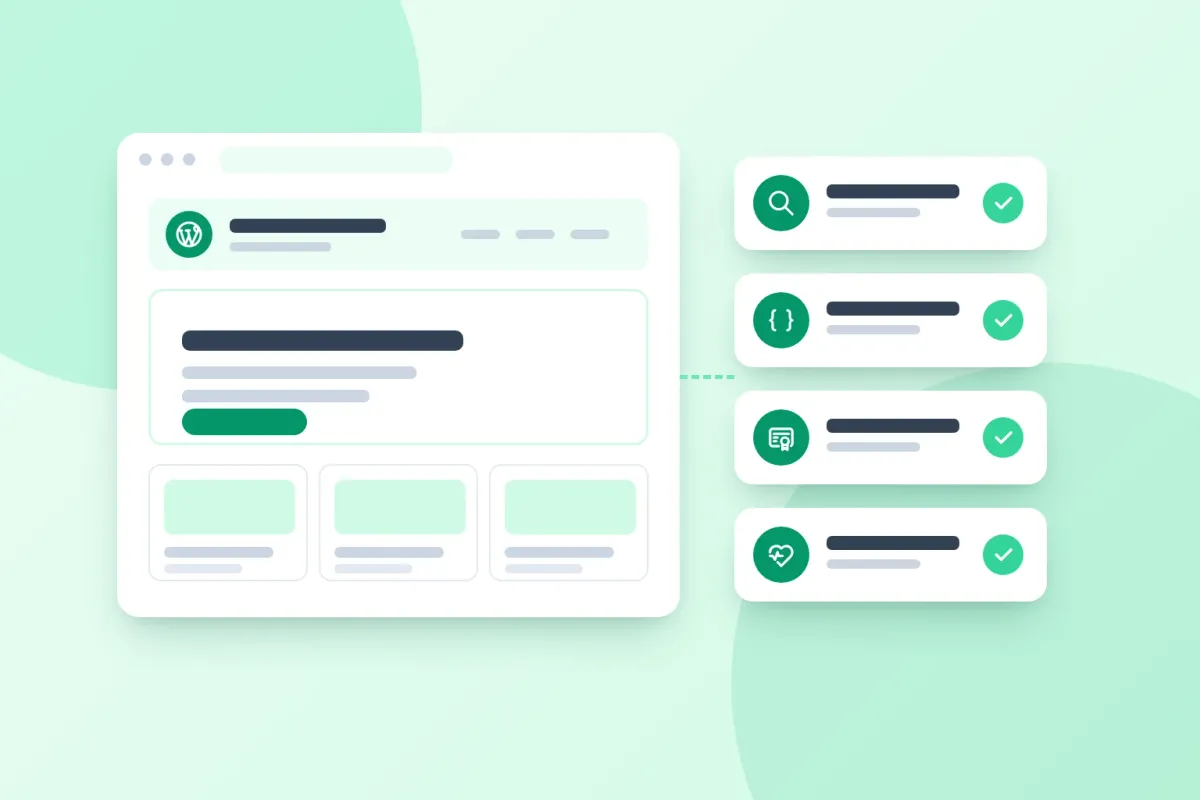
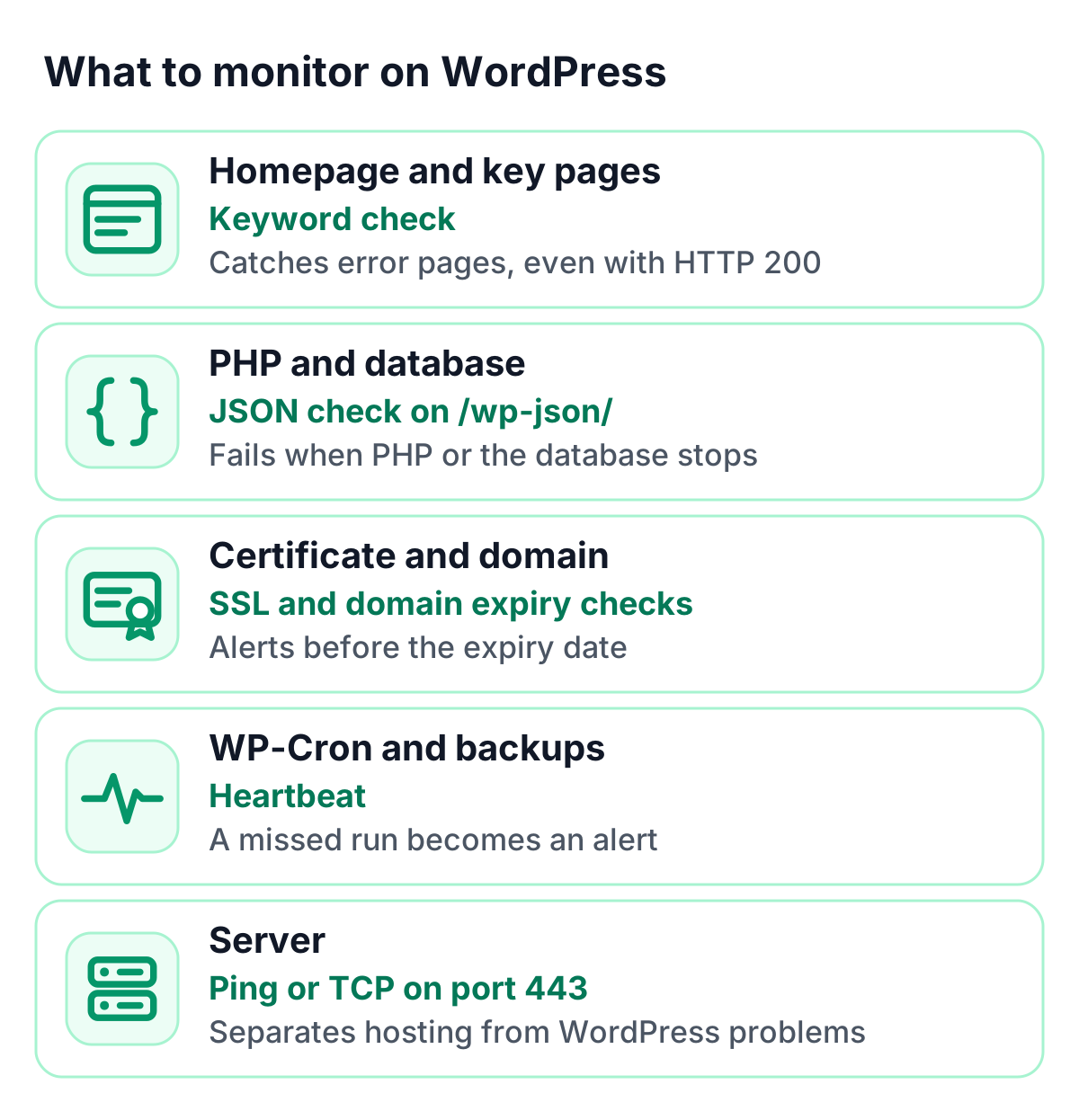
| What you want to know | Check | Why it matters |
|---|---|---|
| Does the homepage load with the right content? | Keyword check | Catches error pages, white screens and maintenance notices, even when the server still answers with HTTP 200 |
| Do your key pages work? | HTTP(S) or keyword check | Contact forms, shop and checkout pages are where visitors convert |
| Do PHP and the database answer? | HTTP check with a JSON assertion on /wp-json/ | The REST API index is generated by WordPress and reads from the database |
| Is the SSL certificate valid? | SSL certificate check | Alerts before expiry and flags a broken certificate chain |
| Will the domain expire? | Domain expiry check | Keeps renewals on your schedule |
| Do scheduled tasks and backups run? | Heartbeat | Turns a missed WP-Cron or backup run into an alert |
| Is the server reachable? | Ping or TCP check on port 443 | Separates a hosting problem from a WordPress problem |
Why monitor WordPress from the outside
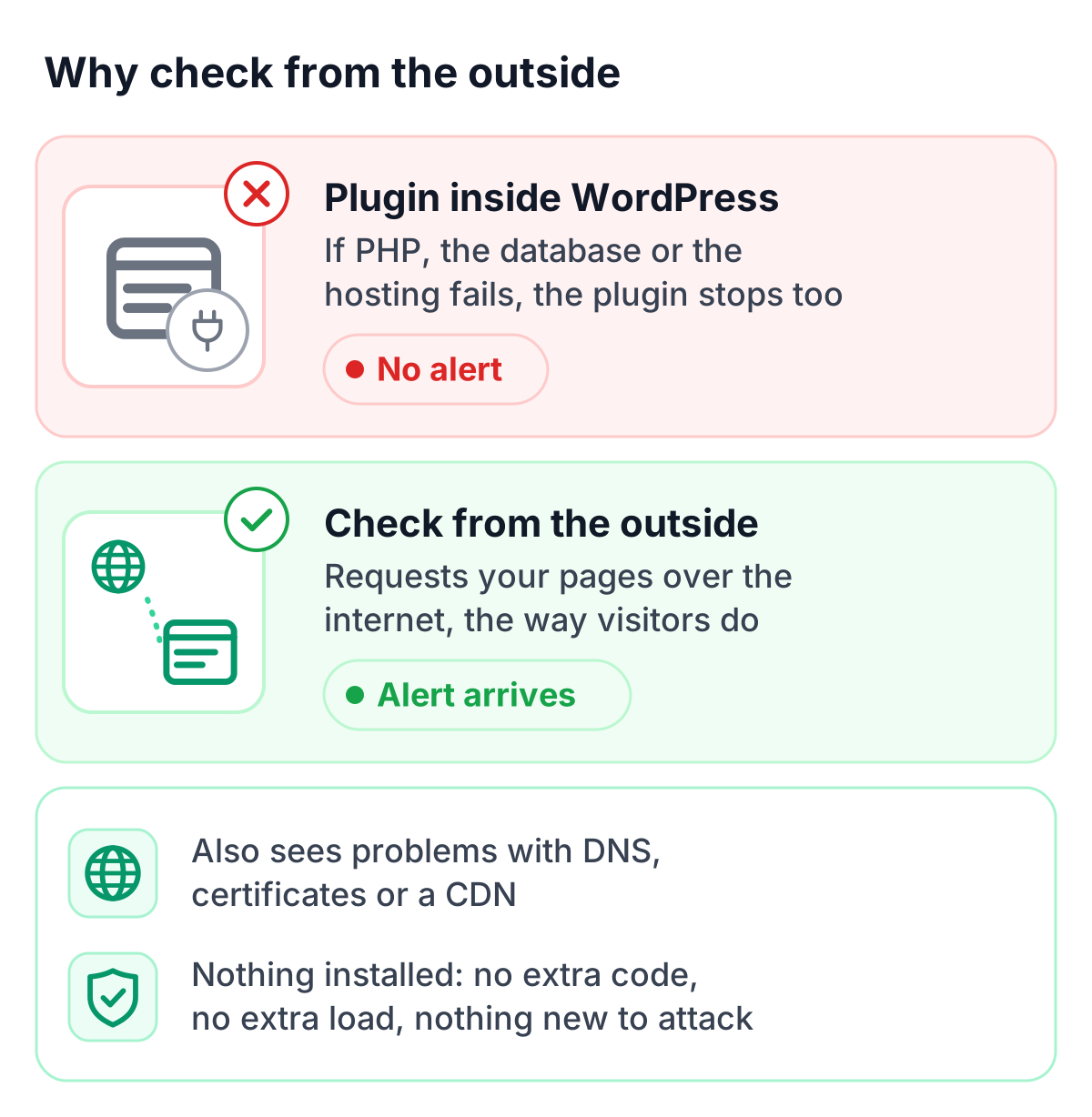
A monitoring plugin lives inside WordPress. When PHP crashes, the database is unreachable or the hosting provider has an outage, the plugin stops running too, which is exactly the moment you need an alert.
External checks don’t depend on your site. They request your pages from the internet, the same way visitors do, so they also see problems with DNS, certificates or a CDN in front of the site. And because nothing is installed, there is no extra code to update, no extra load on the server and nothing new for attackers to target.
WordPress uptime monitoring, step by step
1. Check the homepage with a keyword
A plain HTTP check confirms that the server answers. A keyword check also confirms that the page shows what it should. Pick a phrase that only appears when the page renders correctly, such as a heading on your homepage or a line in the footer. If a plugin conflict replaces the page with an error message, the keyword is missing and you get an alert.
Add keyword checks for the pages that matter most to your visitors, such as the contact page, the shop or the checkout.
2. Monitor the REST API
WordPress answers at /wp-json/ with a JSON document that includes your site name. Because WordPress reads the name from the database, this endpoint is a good health check for PHP and the database together.
URL:       https://www.example.com/wp-json/
Method:    GET
Expect:    status 200
JSON path: $.name == "Example Site"
If a security plugin restricts the REST API, check a page with a keyword instead, or allow the index endpoint for anonymous requests.
3. Add SSL certificate and domain checks
An expired certificate makes browsers show a warning instead of your site. An SSL certificate check opens a real TLS connection, verifies the certificate chain and alerts you before the expiry date, 14 days ahead by default or any window up to a year. A domain expiry check does the same for the domain registration.
4. Make WP-Cron reliable and monitor it with a heartbeat
WP-Cron isn’t a real scheduler. It runs only when someone visits the site, so on a quiet site scheduled posts, emails and backups can run late or not at all. The reliable setup is to disable the visitor-triggered WP-Cron and run it from a system cron job instead.
define( 'DISABLE_WP_CRON', true );Then run the due events every five minutes with WP-CLI and send a heartbeat ping after each successful run:
*/5 * * * * cd /var/www/html && wp cron event run --due-now && curl -fsS https://your-heartbeat-url > /dev/nullSet the heartbeat’s grace period a little longer than the interval, for example ten minutes. If the job stops running, the ping doesn’t arrive and you get an alert. You can add a heartbeat to backup scripts the same way.
5. Pause alerts during updates
Core, theme and plugin updates can put a site into maintenance mode for a short time. Plan a maintenance window for your update slot, and alerts pause automatically while the site is being updated.
Monitoring many WordPress sites
Agencies often look after dozens of WordPress sites. A few habits keep that manageable:
- One service per client. Group each client’s checks into a service, so you see at a glance which client is affected.
- Alerts per client. Send each client’s alerts to the team or person responsible for that site.
- A status page per client. Give clients their own status page on their domain, so they see the status without having to ask.
- Read-only access. Invite clients as read-only viewers if they want to look at the monitoring themselves.
How TrustComponent Monitoring helps
TrustComponent Monitoring checks your WordPress sites from the outside, with nothing to install in WordPress:
- Keyword, HTTP(S) and API checks with JSON-path assertions for the REST API
- SSL certificate and domain expiry checks with alerts up to a year ahead
- Heartbeats for WP-Cron and backups with a grace period from 10 seconds to 24 hours
- Checks as often as every 30 seconds from multiple locations, alerts in 16 channels and escalation chains
- Status pages on your clients’ domains, in their branding and in 10 languages
The Free plan includes 10 monitors with HTTP, ping and TCP checks. Paid plans add more check types and faster intervals, each with a 14-day free trial. Team and Enterprise add all check types and escalation chains.
Conclusion
Monitoring WordPress from the outside covers what visitors actually experience: the page loads, shows the right content, has a valid certificate and keeps its scheduled tasks running. A handful of checks per site is enough, and none of them needs a plugin.
Get started
👉 Start a free trial of TrustComponent Monitoring and add your first WordPress checks in minutes.